Sunday, February 25, 2018

Windows Update Show Hide

Sorry for the cryptic title. Recently a friend was installing Windows 10 on an old PC with an AMD processor. Windows Update kept installing a driver. After the driver installed the PC would attempt to reboot but fail. 3 hard reboots would cause Windows 10 to roll back and all was good until Windows Update installed it again.

Similarly I have an old HP CP1025NW printer. It works fine with Windows 10 but Windows Update keeps trying to install different drivers. The install always fails.


Usually Windows Update will try a couple of times and then go quiet.

However recently when Windows Update failed to install the printer driver the whole Windows Update process hung up.

Microsoft has a tool that will let you block updates.
In Windows 10, your device is always kept up-to-date to have the latest features and fixes. Drivers are installed automatically so that you don't have to select which updates are needed. In rare cases, a specific driver might temporarily cause issues that affect your device. In this situation, you can prevent the problematic driver from reinstalling automatically the next time Windows Updates are installed.
There's a download on that page for wushowhide.diagcab.

Just save it to your desktop and double-click it.


Click on "Next" and it will go look for pending updates.


Click on "Hide updates".


Select the updates you want to block and click on "Next".

Unfortunately Microsoft tends to rerelease updates so blocked updates will reappear from time to time. Just repeat the Show-Hide process again.

Sunday, February 18, 2018

Windows 10 Spring Creators Update

No, I don't know what the next "version" of Windows will be called but history suggests it might be  "Spring Creators Update". One thing for sure, you don't want to be surprised when you wake up one morning and it has installed/uninstalled/crashed overnight.

Likewise Microsoft had their share of troubles with January's patches.

So now is a good time to prepare.

If you're not running Windows 10 Pro, the first thing to do is to go here and buy a Windows 10 key for $14.00. Then backup and upgrade (archive.org) Home to Pro.
  1. Select the Start  button, then select Settings  > Update & security  > Activation.
  2. Select Change product key, and then enter the 25-character Windows 10 Pro product key.
  3. Select Next to start the upgrade to Windows 10 Pro.
Then follow Woody Leonard's instructions from here.

To block Automatic Updates (you can say "defer" if you prefer), click Start > Settings > Update & security. Click the link marked "Advanced Options." You can see the "Choose when updates are installed" pane in the screenshot.

Microsoft has changed the terminology several times in the past couple of months, but choosing "Current Branch for Business" in the first drop-down box should assure that you won’t be upgraded to the next version of Windows (presumably, version 1709) until Microsoft says it's ready for widespread adoption. By choosing CBB, you’re avoiding the four-month-long unpaid beta-testing phase, where those who leave Automatic Update enabled get to install and test the new version of Win10 as soon as it's rolled onto their machines.

The Feature Updates box is supposed to delay the installation of new versions (read: version 1709) by the specified number of days. Remember Feature Update = Version change. At this point, we have no idea how that number will interact with the CBB choice in the first box - or even if it interacts at all. The rules seem to change every week.

The Quality Updates box, though, controls how long Windows Update waits to install the latest cumulative update. Remember Quality Update = Cumulative Update. I suggest you wind that up to 30 days, the maximum, but put a reminder in your calendar to check in a few weeks to see if the next cumulative update is behaving itself.

I don't recommend that you Pause Updates using this setting. It isn't clear what updates are being paused. You still want antivirus updates, for example, and even if Microsoft allows those through now, experience has taught that the rules change all the time.

Windows 10 versions 1507, 1511 and 1607 Pro and Enterprise had similar options, but you have to dig through Group Policy settings to get to them.
If you're on Windows 10 1709 "Fall Creators Update" the term will be "Semi-Annual Channel" instead of  "Current Branch for Business".

If you won't/can't upgrade to Windows 10 Pro, here are Woody Leonard's instructions for Windows 10 1703. You're on your own.

With all this doom and gloom, personally I've had good luck.

Cross your fingers.

Sunday, February 11, 2018

Edge Is Good For Something

I finally found something that Microsoft's Edge browser is good for.

Last week I was reading an article at Medium.com on "What Really Happened with Vista: An Insider’s Retrospective". It was a good article but the presentation drove me crazy.

It had a CSS "shade" at the top and another CSS "footer" at the bottom. These caused PgDn to scroll too far and you would miss some of the text. Then you'd have to Up Arrow to see the skipped text.


I didn't have enough patience to read much of it in this manner.

Then I recalled that Edge has a reading view.

I copied the URL and pasted it into Edge. In the address bar is an icon that looks like an open book.


Click on that and you're put into Reading view" mode.

Much better.


I concede that there are similar capabilities in Google's Chrome but they all require hacks or non-Google extensions.

Sunday, February 04, 2018

R.I.P CrashPlan

I've been a huge proponent of CrashPlan. I started with the personal offsite backup.

That worked well and I eventually added their cloud backup.

You can read about my experiences here. I'll save you some time. It's nothing but good.

Then...

In August 2017 I got the following e-mail:
Thank you for being a CrashPlan® for Home customer. We're honored that you’ve trusted us to protect your data.
It's because of this trust that we want you to know that we have shifted our business strategy to focus on the enterprise and small business segments. This means that over the next 14 months we will be exiting the consumer market and you must choose another option for data backup before your subscription expires. We are committed to providing you with an easy and efficient transition.
They partnered with Carbonite but Carbonite's offering just isn't what CrashPlan's was. For example Carbonite only keeps deleted files 30 days.

Then during the Black Friday sales I saw an offer from StackSocial for 2TB for life for $39.99. (That has since gone back up to $49.99.)

I had to look at that.

What StackSocial was offering was Zoolz Archive Home. What comprised the 2TB was 1TB of Instant Vault storage and 1TB of Cold Storage.

Instant Vault has to be accessed using a web interface. You can also generate shared links for the Instant Vault storage like DropBox.

Cold Storage has a Windows Service that manages the backups like CrashPlan. Cold Storage uses Amazon Glacier as a store. This means that it takes approximately 3-5 hour to restore from Cold Storage. I don't see that as a problem for backup.

My CrashPlan backup was about 400GB so it's going to take a while to backup all that to Zoolz but it's chugging along just fine.

As a backstop I've signed up for CrashPlan for Small Business at 75% discount for a year.


Sunday, January 28, 2018

WOA, Again

I've blogged a couple of times (here and here) about the emergence of ARM in the (formerly) Wintel world (known as Windows On ARM - WOA). It's coming faster than even I expected.

We all try to forget about the ill-fated Windows RT devices. I hope you didn't buy one.

But now...

At the recent Microsoft Windows Hardware Engineering Community (WinHEC) event in Shenzhen, China Qualcomm announced Windows 10 devices powered by their Snapdragon processors.

They promised three big capabilities:
  • The screen turns on "instantly"
  • LTE is built right in
  • The battery can last for days
This isn't another Windows RT variant. Windows 10 on ARM will support Universal Windows Platform (UWP) apps and Win32 apps in the Windows Store, as well as existing Win32 apps.

That pretty much means everything.

HP, Asus, and Lenovo have already announced Windows 10 devices running on Snapdragon processors.

In one of his podcasts, Brad Sams described it this way:
This is kinda like Day 1 of the new generation of Windows-based machines.
Here we go!

Sunday, January 21, 2018

Windows 10 Rant

I haven't had a good rant in a long time. And it's not that I dislike Windows 10. And it's not that I don't like Windows 10 upgrading (different than updating) regularly.

Remember back in a previous post I enumerated the various versions of Windows 10. There's been more since then and a commitment (threat) from Microsoft for 2 per year.

In that post I noted 2 issues with the Anniversary Update (1607). They have continued with the Creators Update (1703).

I'll try to recap the things to look out for as Microsoft leads us down this trail.

Microsoft will silently remove drivers and software that they think aren't compatible with the new version of Windows. I have had my video drivers removed twice including the non-driver program used to update the drivers. Most recently they removed my VNC service. Microsoft admitted to the EU that they remove third party antivirus in certain conditions. I understand why in some cases that these actions are necessary but please don't do them SILENTLY.

Microsoft twice has reset password network protected sharing. I don't see that that has anything to do with a new version of Windows.

Microsoft has turned off System Restore. You find this missing at the worst possible time when you need to fall back to a known good state. You can turn it back on but still...


Sunday, January 14, 2018

One More Log on the Fire

If you're a regular reader you'll know that I'm a proponent of using Windows Defender as my anti-virus. While that it's free is a big factor for me, that it doesn't introduce new vulnerabilities into Windows is even bigger.

I've discussed that here, here and here.

In Microsoft's announcement of their patches for Meltdown and Spectre they included the following:
Note: Customers will not receive the January 2018 security updates (or any subsequent security updates) and will not be protected from security vulnerabilities unless their antivirus software vendor sets the following registry key:
Read that again.

If your anti-virus vendor doesn't set a new registry key you will NEVER get another security update.

Now, certainly mainstream anti-virus vendors quickly complied.

But what that means is that mainstream anti-virus vendors have been using non-public kernel calls.

Don't do that.

Further if you don't run any anti-virus you must manually set that registry key or you will NEVER get another security update.
In cases where customers can’t install or run antivirus software, Microsoft recommends manually setting the registry key as described below in order to receive the January 2018 security updates.
There's a pertinent blog post here.

Sunday, January 07, 2018

The World Revolves Around Memphis

Chrome 63 is forcing all domains ending on .dev to be redirected to HTTPS via a preloaded HTTP Strict Transport Security (HSTS) header. This may impact organizations that have been using .dev TLD privately for their own development teams.

Now most of us don't have to worry about that but it reminded me of a situation I had encountered at a former company.

My company had acquired another company. They were using an address space for their internal TCP/IP network that was routable but didn't belong to them. Obviously they weren't connected to the Internet.

They also had an internal DNS server that used their company's initials as a TLD. Needless to say that weren't the owner of the TLD.

Yeah, it took us a while to integrate them into our network.

But that was just the start.

As we were upgrading SAP worldwide we changed the GUI to use DNS rather than a hard-coded IP address. Then we pushed that change worldwide.

Then the SAP Basis team changed the target of the DNS name and watched for fallout.

Europe failed and was quickly addressed by updating our European DNS server.

But oddly, seemingly random US facilities were also failing.

We finally discerned that these were all facilities of the former company.

The on-site LAN admins determined that the locations' PCs had their DNS pointing to the former company's servers. Obviously they hadn't been updated.

When I reached out to management at the former company he responded that "You act like the world revolves around Memphis."

My response was "When it comes to DNS, it does."

Those were the good old days.

Sunday, December 31, 2017

Storage Sense

One of my employees used to tell me that I was the only boss that he'd had that he would turn to for technical help.

Now it's my turn to turn to one of my former bosses.

I got a FaceBook message asking:
Also do you use "storage sense" to clean files off the ssd or do you manually remove frequently...
I didn't know what he was talking about.

It turns out that Windows 10 Creators Update (1703) has a new feature "Storage Sense."

Who knew?

Windows Central has a good article on Storage Sense.
Storage sense is an optional feature, which is disabled by default, but when enabled, it'll proactively delete temporary files, like those created by apps. It'll delete files that have been in the recycle bin for more than 30 days, as well as files in the downloads folder that haven't changed in 30 days. If you're running low on space, Storage Sense even includes an option to delete the previous version of Windows 10 to make more room.
Click the Windows key and type "Storage". Click on it. Make sure the Storage Sense toggle is On.


Then click on "Change how we free up space".

I don't see why you wouldn't want to check all the boxes there.


The last checkbox was added in Fall Creators Update (1709).

You might as well click on "Clean now" while you're there.

I recovered 4.12 GB.

Sunday, December 24, 2017

Global Entry

tl;dr Global Entry speeds you through U.S. Immigration and Customs really fast.

On the return from our recent trip to Canada, we cleared U.S. Immigration and Customs in Chicago in less than 5 minutes.

Here's how...

A couple of years ago before we traveled to Ireland we joined the U.S. Customs and Border Protection (CBP) Global Entry program.

At the time we had to travel to Nashville for the CBP interview. The interview took less than 5 minutes and we received e-mail notification that we had been approved before we left the parking lot.

According to Customs and Border Protection's page the benefits are:
  • No processing lines
  • No paperwork
  • Access to expedited entry benefits in other countries
  • Available at major U.S. airports
  • Reduced wait times
  • TSA Pre✓ Eligibility
You also get Global Entry cards (like a Passport Card) that are good for U.S. entry at land and sea ports of entry. We used these when visiting Campobello Island.

Global Entry costs $100 compared to TSA Pre✓'s $85 and includes TSA Pre✓. Global Entry also includes the equivalent of a Passport Card ($30). Both Global Entry TSA Pre✓and  are good for 5 years.

How this works is that when the flight attendant passes out the Form 6059B politely take it, put it in the seatback pocket, and go back to watching the movie. You don't have to complete it.

Then when you deplane and go to the Immigration area, watch for the Global Entry kiosks.

Place your passport on the reader, smile for the camera, put your hand on the sensor and answer the few questions. Take the receipt that the kiosk prints and head for the exit.

Wave the receipt politely to the Immigration agents and keep going.

Now you're in Customs. Again look for the Global Entry line. It's the Customs agent without a line. Wave the receipt politely to the Customs agent and keep going.

Head to Starbucks and wait for your friends that didn't have Global Entry.

By the way there's also Mobile Passport Control that is similar.
Mobile Passport Control enables travelers to submit their passport and customs declaration information via their smartphone instead of the traditional paper form. 
Follow the Mobile Passport Control signs to the designated Mobile Passport Control line. Show your passport to the CBP officer and scan the barcode on the CBP receipt. And that’s it!
It's free but doesn't include TSA Pre✓ or the Global Entry Card. Mobile Passport Control requires some pre-work on your smartphone before you land. Once you're on the ground you have to connect to the Internet and complete some information. Then you are shown a barcode that you have to present to the CBP agents at Immigration and Customs.

Not all international arrival airports have Global Entry and fewer support Mobile Passport Control. We actually cleared Global Entry in Dublin on our return from Ireland.

Sunday, December 17, 2017

KeePass

I've written about KeePass several times in the past but it's been a while and I've made a couple of improvements.

A recent article in Sophos' Naked Security blog inspired me to update my use of KeePass.

Naked Security's summary of KeePass was:
KeePass is an open-source password manager that does all the things you’d expect a password manager to do at the very least – it stores all websites and service credentials in a highly-encrypted vault that can only be unlocked with one Master Password, which becomes the only password you need to remember.
Versions

There actually are 2 versions of KeePass. I've been using it so long that I started on version 1. Both versions are actively being maintained. There's nothing that I have wanted to do that version 1 doesn't do so I'm staying on that for now.

Installation

KeePass runs as a portable app. I have it on a USB drive that I keep on my keychain.

I also have it in a folder on my Dropbox including the active database. These are identical copies. I install on the USB drive and copy to the Dropbox folder.

On each of my PCs and laptops I have a shortcut on my desktop that points to the Dropbox instance of KeePass and opens the database read-only.

Don't worry about the security of the database. The KeePass database is AES 256 encrypted.

Operations

When I intend to update the KeePass database I run it from the USB drive. 

When I exit KeePass with changes to the database, I have an DB_Backup plug-in that makes a backup of the database and invokes a BAT file. This BAT file copies the new database from the USB drive to the KeePass Dropbox folder on that PC or laptop. A few more details on this BAT file are here.

This accomplishes 2 objectives. First it backs up the database in case the USB drive is lost or damaged. Second it provides access to the database to my other PCs and laptops via Dropbox.

While I haven't dug into KeePass version 2 I understand that this cloud (in my case Dropbox) capability is built into the base product.

Usage

While KeePass isn't as integrated as LastPass or Google's Smart Lock, it does let you specify which URLs are related to a KeePass entry.

For example, the following is my entry for xmarks:


This tells KeePass to use this user name and password when invoked on a URL that begins with "Xmarks - ".

In "Tools" is a wizard that helps you build the Auto Type selection. You just choose the target window from a drop-down list. Incidentally since KeePass is using the window name you can also use this feature for non-browser logins.

There is also a feature that will generate random passwords for you.

You can specify your own key sequence to invoke KeePass login. I use the left Ctrl key and the / key. Just place your cursor in the user name field and press your key sequence. KeePass will type the user name and password into the target window. There are simple script-like commands to tell KeePass when to tab, press Enter, etc.

Smartphones

On Android I use KeePassDroid and on iOS I use KeePass Touch.

Miscellaneous

I also use KeePass as an address book. KeePass allows you to create various folders in its database. I have one called "Names and Addresses."


Sunday, December 10, 2017

Air Transfer

As I mentioned in my Back and Forth post I'm using an iOS app Air Transfer to copy photos from the iPhone to my Windows laptop.

Here's my workflow.

I launch Air Transfer.


On my laptop I browse to the URL that Air Transfer presents. It pretty much never changes.


On my laptop I click on the link to take me to the Camera Roll.


I select the photos that I want to transfer to my laptop. The free version of Air Transfer lets you select 10 photos at a time. The upgrade to the Pro version is $1.99.


I click on the Download link.


Air Transfer then creates a zip file and downloads it to my laptop.

When the download is complete I go back to the iPhone, double-click the home button and swipe away Air Transfer.

Then I launch Apple's Photo app and delete everything on the Camera Roll.

Done.

Why don't I use Google Photos? Actually I do. But Google Photos recompresses the photos so I don't use this copy for archive. I use the Google Photos copies for casual sharing.

Why don't I use Dropbox? Actually I do. But not for photo transfers. Dropbox renames the files. I prefer to maintain the original file name.

For a thorough comparison of Google Photos and Dropbox revisit my Dropbox vs Bluetooth vs Google Photos post. Think of Air Transfer as the iPhone equivalent of using Bluetooth on Android.

Here is one of the screen captures from the app store:


Here's what mine looks like:


Because there is no slider for WiFi Transfer you must swipe away the app. I asked the developer about his. He replied quickly.
I am currently overhauling the internals of the App.
The on/off switch was temporarily eliminated in current version.
To disconnect Air Transfer, you can either shutdown the WiFi of iOS or terminate Air Transfer.
The on/off function will be available in later updates.
A similar app is File Hub. It has a lot broader set of capabilities than Air Transfer but includes a Wi-Fi transfer service. I didn't stick with File Hub as it requires a web password on each execution. If you're using a public Wi-Fi this is absolutely necessary but on my home Wi-Fi this was just a nuisance.


Sunday, December 03, 2017

Contactless Payments

One day on my deals feed was this gadget:
The post said "We can all afford to be paranoid at this price."

Should we really be paranoid?

So I went to wikipedia.
The examples and perspective in this article may not represent a worldwide view of the subject. 
Contactless payment systems are credit cards and debit cards, key fobs, smart cards or other devices, including smartphones and other mobile devices, ...
Mobil was one of the most notable early adopters of this technology, and offered their "Speedpass" contactless payment system for participating Mobil gas stations as early as 1997.  

What does that really mean for you and me?

Not much.

Remember that opening statement from wikipedia: "The examples and perspective in this article may not represent a worldwide view of the subject."

Here are some valid concerns but it's from the UK.

Here is a North American-centric view of contactless payment systems.

"Nothing to see here, move along".

But remember that wikipedia also said: "...including smartphones and other mobile devices."

But smartphones and other mobile devices won't fit in the little case.

Not to worry.

Although these are "contactless" they are based on NFC. Although NFC is contactless there is always another layer of security, e.g. TouchID for Apple Pay.


Sunday, November 26, 2017

Neutrons

Every now and then my propeller beanie comes out.


Here I go again.

Last year during the week between Christmas and New Years, I had my annual lunch with two of my geekiest friends.

That was a time to be remembered.

I've already discussed one of the topics we covered.

One of the lunch mates is a long time employee of a global logistics firm that has multiple data centers, one at a high altitude, i.e. more than a mile high.

Somehow he got off onto failure rates related to altitude. He attributed these failures to neutrons.

I kid you not.

He had noticed that some equipment seemed to fail more often at the mile high data center. The vendors of the failing equipment didn't buy the idea of neutron density at altitude causing the failures.

The logistics company did a tightly controlled experiment at Memphis and at the mile high data center.

The results were convincing. Certain equipment from certain vendors failed way more often at the mile high data center.

While you may say "That doesn't apply to me. My data center is not a mile high."

Don't speak too fast.

When I worked for this global logistics firm we used to say that the problems we were encountering were going to be everybody else's problem in 5 years.

The same goes with neutrons.

Here's why: Ice Lake.

Read this from AnandTech.

A 10nm processor is coming your way and soon.

I won't miss this year's lunch for anything.

Here's a reading list on neutrons.

Cosmic rays creating energetic neutrons and protons

Cisco Blamed A Router Bug On 'Cosmic Radiation'
We did send a system to a POP in Denver (altitude 5000+ ft) and saw on this system a statistically significant increase in recoverable memory ECC errors.
When the affected board was returned to San Jose and retested (basically sea level) the errors could not be reproduced.
So we returned the hardware back to the Denver POP, and the recoverable ECC errors returned. No amount of swapping memory DIMMs (various vendors) made a difference.
Problem background
...research has shown that the majority of one-off soft errors in DRAM chips occur as a result of background radiation, chiefly neutrons from cosmic ray secondaries, which may change the contents of one or more memory cells or interfere with the circuitry used to read or write to them.[2] Hence, the error rates increase rapidly with rising altitude; for example, compared to the sea level, the rate of neutron flux is 3.5 times higher at 1.5 km and 300 times higher at 10–12 km (the cruising altitude of commercial airplanes)
How Cosmic Rays Cause Computer Downtime
Neutron intensity increases dramatically with altitude.

Sunday, November 19, 2017

PayPal Reminders

With the holiday season right upon us it seems time to share some PayPal reminders:

Am I the Last Person? - When you use PayPal on another site, it DOESN'T log you out.

PayPal Preapproved Payments - Many merchants send their request to PayPal asking for you to PREAPPROVE any payments to them that they want to make.

While these posts are from some time ago I confirmed today that they are still valid.

Sunday, November 12, 2017

Chip and PIN Cards

So do you have one of the new "Chip and PIN" cards? They are also known as "EMV" for Europay/MasterCard/Visa.

Instead of swiping you're supposed to "dip" them. Currently not all merchants have implemented the "dip" technology. There are fiscal liability implications related to that don't affect the consumer so I won't cover that here.

What I will try to explain is the part of the new EMV cards that is known as the Card Verification Method (CVM).

I have a USAA Visa card. In preparation for a trip to Ireland a couple of years ago I called USAA and asked for an EMV card which they supplied. When I received it I followed up with USAA and set a PIN for the chip.

I successfully used the USAA EMV card during my trip to Ireland. At most merchants I was asked to sign a receipt. This seemed to confuse most merchants but it never impacted the success of the transaction. No merchants' terminals challenged me for a PIN.

Subsequently US merchants have been replacing their credit card terminals with the new "dip" capable ones. These don't challenge me for a PIN and not always even for a signature.

This got more interesting recently at a self-service gas station in Quebec City, Canada.

The card reader on the pump was chip-enabled. It fussed at me in French for inserting and withdrawing my card like I would do in the US. Finally I understood enough French to leave the card in. Then it asked me how much to pre-authorize on the card. In the US this is just done silently. I wasn't ready to perform a quick calculation in a foreign currency so I just chose the largest amount 125$. Then it asked me for the PIN of the chip not the stripe. Thankfully I had activated a PIN on the chip in preparation for my trip to Ireland. It churned for a second and told me to remove the card and begin pumping.

That transaction got me interested in what the process was to determine whether an EMV card transaction will require a PIN or signature or nothing.

At a summary level, each EMV card has a prioritized list of verification methods (CVMs) that may vary with the value of the transaction. This list is processed by the terminal searching for a matching CVM from the card.

SpottersWiki has a database of EMV cards and associated CVM methods. When I searched it for my USAA Visa card it reported the CVM methods were:
1: Signature (paper)
2: Enciphered PIN verified online
3: Enciphered PIN verified by ICC (aka offline PIN)
4: Plaintext PIN verified by ICC (aka offline PIN)
5: No CVM required
There is another database here but it isn't being updated.

The kicker here is that gas pump in Quebec City obviously couldn't accept a signature as verification and therefore required a PIN. It is not clear to me that the chip PIN is necessarily the same as the magnetic stripe PIN. I suggest you contact your card issuer to make sure.

This process is due to be implemented in US gas pumps by October 2020.

A more in depth explanation is here.
Although EMV is often referred to as “Chip and PIN”, in fact EMV supports several different methods of verifying the identity of the cardholder, known as Cardholder Verification Methods (CVM). Every card contains a list of the CVM that it supports, and when they need to be applied (e.g. Use online PIN if the transaction is an ATM cash withdrawal, else use signature).
Whenever an EMV transaction is performed, the terminal’s EMV Level 2 Kernel processes the CVM list in order, until it finds a CVM that it supports and can process. In the event that no supported CVM is found or an error occurs during CVM processing (e.g. the PIN-Pad was malfunctioning), the EMV kernel will flag this in the Terminal Verification Results, which may cause the transaction to be declined or sent online for authorisation by the card issuer.
The CVM that EMV currently supports are Online PIN (required in certain countries for all transactions, and also for all ATM cash withdrawals), Offline PIN verified by the chip card (required in certain countries for all payment transactions), signature (for attended payment terminals in some countries), or a combination of both PIN and signature if additional verification is required.
Also, in some environments it is permissible to use no CVM for low-value transactions or for terminals that do not support any of the CVM on the cards.

Sunday, November 05, 2017

Windows Defender Doesn't Suck

While I realize that's a left-handed compliment there's some meat behind it.

I've mentioned Windows Defender a couple of times recently non-disparagingly. I still believe the best protection for your Windows system is discretion. Just don't go to stupid places.

However it still makes me feel better to have some kind of anti-virus tool lurking in the background just in case somebody tricks me.

The AV-TEST Institute runs a couple of anti-virus bake-offs each year. The most recent results are here.

Tom's Guide has a good summary of the AV-TEST comparison. I love their recap.
Microsoft’s [Windows Defender] Protection score was 5.5 out of 6. For a program that was bottom-of-the-barrel just last year - and comes free with Windows - that’s not bad at all.

Sunday, October 29, 2017

Controlled Folder Access

Windows 10 Fall Creators Update (aka 1709) was released October 17, 2017.
Windows 10 Fall Creators Update includes a number of new features, including a replacement for OneDrive Placeholders, support for Windows Mixed Reality, the ability to more seamlessly connect to Windows PCs from iOS and Android phones and an improved Photos app experience.
ZDNet
I've installed it on a couple of laptops with no issues. I haven't seen any problems with it nor really any new features.

Except...

Windows 1709 has a new Windows Defender capability called "Controlled Folder Access".
A below-the-radar security feature in the Windows 10 Fall Creators Update ... can stop ransomware and other file-scrambling nasties dead.
The controlled folder access mechanism within Windows Defender prevents suspicious applications from changing the contents of selected protected folders.
The Register
To turn it on, click on the Windows key and type "Windows Defender Security Center". Click it and then click on "Virus & threat protection".


Then click on "Virus & threat protection settings".


You're getting warm.

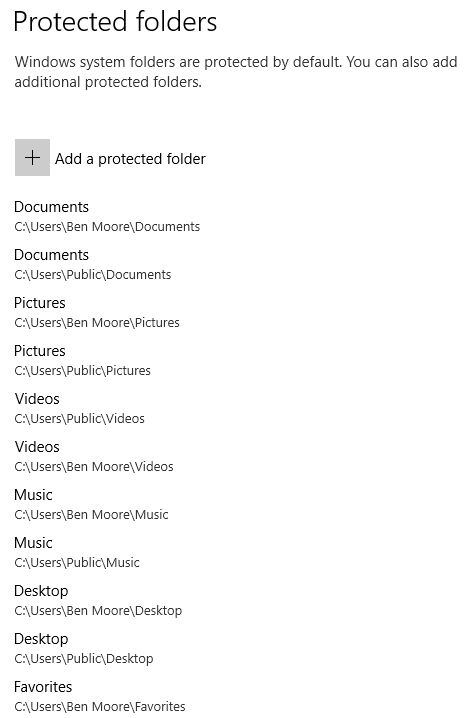
Under "Controlled folder access", slide it to "On" and click on "Protected folders".


You can also add programs to the whitelist.


Here are the folders protected by default:


Add any that Windows didn't choose.

The best write-up I've found is here.

Here's what it looks like in action:


Sunday, October 22, 2017

Chrome Search Engines

I came across this article recently describing how to add a new search keyword to allow you to go directly to Google Maps with an address in the search bar. It's very easy but ...

As I followed the simple steps...
In Chrome, go to Settings, then select “Manage search engines.” Next to “Other search engines,” ...
Whoa!

Look at all the stuff that was already there!


Why would Google let bhphotovideo.com create an entry in my search engines?

Worse yet, the ones that are in the "Other search engines" are active.

The presentation infers that you have to use the Keyword to invoke them but there's a shortcut that lets them sneak in.

For example, the first entry in my "Other search engines" was "bhphotovideo.com" with a keyword of "bhphotovideo.com". But if I enter "bhp" in the address bar and press "Tab" guess where I go? To a Google search of bhphotovideo.com. There are hundreds of these entries in my Chrome "Other search engines". And there's no way to delete them en masse.

Stop that!

There seem to be at least 2 ways these get added. 1) Google will discern that there's a search box on a page and add an entry or 2) the site will use an API to add an entry.

There are discussions of this here and here. Oh, yes, the Chromium developers know about this and have marked it WontFix. See Comment 7.

There's even a Chrome extension that addresses this that I haven't tried.

Sunday, October 15, 2017

iOINK

If you remember my previous comments on iTunes, this post will come as no surprise.

I like to make my own ringtones. With Android, this is a piece of cake. Just find/create an mp3 file and e-mail it to yourself. Save it on the phone and then set it as a ringtone. Done.

As noted in the above referenced post, iTunes can accomplish this in 16 easy steps.

Ok, so I realize that I have to use iTunes with my iPhone 6s.

But I don't have to like it.

Recently I wanted to copy a couple of TV shows that I had recorded to my wife's iPhone SE. I converted them to M4V. Then I added them to my iTunes library.

But they didn't show up in the library. Consequently then they didn't sync to the iPhone.

Why on earth?

After a couple of hours of Google searches I finally came up on this forum post from 5 years ago:
I did believe that I have figured out what is going on though. In Itunes>Preferences>Store there is an option to keep playback synced between devices. I needed to uncheck that before the movies would show up in the itunes interface. Once that happened, I could go in and change the media type and organize it the way I wanted.
So if you want your home videos to sync in iTunes just uncheck the option to "keep playback synced between devices."

Why didn't I think of that?

Oh, now you want to WATCH these videos? Apple has removed the Videos app and put that function in the TV app.

Why didn't I think of that?