One of the things you need to consider when moving to VoIP is what are you going to do about E911.
Obihai has a partnership with Anveo to offer E911 serivces to Obihai customers for $12 per year. The instructions are here.
Alternatively you can use the copper pair of the POTS line you just disconnected! POTS carriers (and cellular carriers) are required by law to handle 911 calls even if there is no subscribed service.
There are 2 ways to do this. The first is to keep a phone plugged into your old house wiring and use that for calling 911. That's my plan.
The second is to use a OBi110 with a line port. Plug your old house wiring into this port and you're done. Here's a review from Amazon where someone has done exactly this.
Sunday, September 29, 2013


Sunday, September 22, 2013
On the Way to VoIP - Part 2
As I was testing VoIP with the OBi100 I wanted to test using my smartphones as clients.
Obihai has apps for iOS and Android. These apps traverse the Internet back to your house and use the OBi100 to originate the call.
I installed the iOS app on my iPad and it worked perfectly the first time. Then I installed the Android app. I noticed that it was last updated in October 2011. Unfortunately it didn't work as smoothly. If you want to see the blow by blow read this. As noted it works sometimes but not very often.
There is discussion in that thread about using other SIP clients and I tried that briefly but that was really non-trivial to setup.
Since my goal was not really to network back to my house and use the OBi100 I went looking for just Google Voice clients.
I found GrooVe IP Lite. It did exactly what I wanted and worked the first time. It makes and receives Google Voice calls from your Android device. You have to enable Google Chat in your Google Voice account but that should be done already for the OBi100. The Lite version only works over Wi-Fi but that is fine for now. There's a good guide for installation and use here.
Why didn't Google just do this with their Google Voice app?
Obihai has apps for iOS and Android. These apps traverse the Internet back to your house and use the OBi100 to originate the call.
I installed the iOS app on my iPad and it worked perfectly the first time. Then I installed the Android app. I noticed that it was last updated in October 2011. Unfortunately it didn't work as smoothly. If you want to see the blow by blow read this. As noted it works sometimes but not very often.
There is discussion in that thread about using other SIP clients and I tried that briefly but that was really non-trivial to setup.
Since my goal was not really to network back to my house and use the OBi100 I went looking for just Google Voice clients.
I found GrooVe IP Lite. It did exactly what I wanted and worked the first time. It makes and receives Google Voice calls from your Android device. You have to enable Google Chat in your Google Voice account but that should be done already for the OBi100. The Lite version only works over Wi-Fi but that is fine for now. There's a good guide for installation and use here.
Why didn't Google just do this with their Google Voice app?
Sunday, September 15, 2013
Jelly Bean Easter Egg
Jelly Bean is so cool. I'm probably the last person to discover this but Jelly Bean has an Easter egg.
If you go to "Settings" / "About phone" and tap "Android verion" several times a jelly bean will pop up. Long press it and it confirms that you're running "Jelly Bean" and then gives you a screen with floating jelly beans. The only objective is to flick the jelly beans off the screen. I guess it's a good time killer.
Similarly if you're running CyanogenMod tapping on "CyanogenMod version" will get you their Easter egg.
Engadget had a post on the Easter egg with a video of it in action.
If you go to "Settings" / "About phone" and tap "Android verion" several times a jelly bean will pop up. Long press it and it confirms that you're running "Jelly Bean" and then gives you a screen with floating jelly beans. The only objective is to flick the jelly beans off the screen. I guess it's a good time killer.
Similarly if you're running CyanogenMod tapping on "CyanogenMod version" will get you their Easter egg.
Engadget had a post on the Easter egg with a video of it in action.
Sunday, September 08, 2013
Jelly Bean Notifications
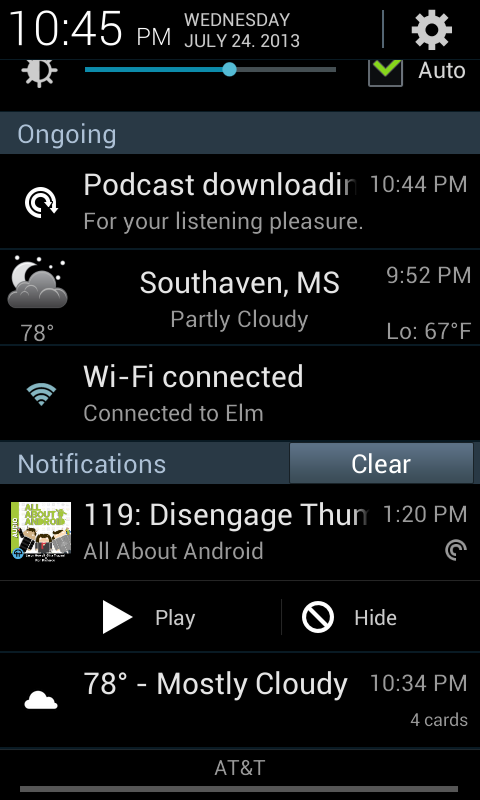
I'm still finding new stuff in Android's Jelly Bean. I recently moved to Pocket Casts and noticed that Pocket Casts takes advantage of a new Notification feature in Jelly Bean.
Applications can put additional information and even action buttons in the Notification area.
Here's the normal notification from Pocket Casts.

To expand the Pocket Casts notification, drag it down with 2 fingers.

You can resume playing the podcast directly from the Notification screen.
Nice.
Applications can put additional information and even action buttons in the Notification area.
Here's the normal notification from Pocket Casts.

To expand the Pocket Casts notification, drag it down with 2 fingers.
You can resume playing the podcast directly from the Notification screen.
Nice.
Sunday, September 01, 2013
2013 Pathfinder Setup
Remember my recent post about my Honda Accord's iMID system? Now my wife has gotten a new car, a 2013 Nissan Pathfinder. It has an in-dash screen but it is not as comprehensive as the Accord's. Subsequently some of the setup is a bit more obtuse.
Procedure for storing the outside mirror positions for best visibility when backing up
An outside mirror position for backing up can be stored for each memory switch (1 and 2):

Procedure for storing the outside mirror positions for best visibility when backing up
An outside mirror position for backing up can be stored for each memory switch (1 and 2):
- Set the parking brake.
- Place the ignition in the ON position. (Do not start the engine.)
- Push the memory switch 1 or 2 fully for at least one second to operate the automatic drive positioner.
- Turn the outside mirror control switch to L (Left).
- Depress the brake pedal.
- Move the shift selector to R (Reverse).
- Adjust the mirror to the desired viewing position for backing up by operating the outside mirror control switch.
- Push the SET switch and, within five seconds, push the memory switch 1 or 2 selected in step 3.
- The indicator light for the pushed memory switch will come on and stay on for approximately five seconds after pushing the switch. After the indicator light goes off, the selected mirror position is stored in the selected memory (1 or 2).
- Turn the outside mirror control switch to R (Right). Repeat the above procedure to adjust the right mirror position and store in the selected memory.
- When the driver’s seat and outside mirrors are not in the memorized position, the outside mirror will move with the initial tilt-down angle.

Sunday, August 25, 2013
Jelly Bean 4.3
It seems like I just finished upgrading everything to Jelly Bean. Now here comes Android 4.3. Another flavor of Jelly Bean.
As usual CyanogenMod is awesome. They started releasing CM 10.2 nightlies for a small set of devices and my Samsung Captivate was among them.
All I thought I had to do was to go to "Settings" / "About phone" and look in the "CyanogenMod updates".

From there I changed the "Update types" setting to "New versions (incl. Nightlies)" and I was shown the nightlies.

I chose cm-10.2-20130817-NIGHTLY-captivatemtd and let it download and install.
I was doing good until that point.
What I didn't realize was that they had to repartition the NAND storage. When the CM Updater tried to flash the ROM I got the following screen.

Whoops!
At that point I backed out and went to RTFM.
As usual there's a thorough thread on xda-developers.com. Obviously I should have started there.
I had missed 2 things that I should have done in preparation for this update. First, I needed to have a nandroid backup of /data before I started. Second, I needed new gapps (Google apps).
Fortunately I had just taken a nandroid backup and written it to my external SD card so I was ready with that.
The second post in the above thread had a link to the new gapps. I downloaded those and Bluetoothed them over to the Captivate.
So back to the CM Updater. This time I was expecting the prompt for repartitioning. What I didn't expect was to have to go searching for the "update.zip" referred to above.
It's not called update.zip. It's /storage/sdcard0/cmupdater/cm-10.2-20130817-NIGHTLY-captivatemtd.zip. At least now I know. So do you.
So the repartition and flash worked. Before I left recovery I restored /data using these instructions and rebooted.
Then I went back into recovery and installed the gapps.
Here's the result.

I thought I was finished.
I kept having various problems with a couple of apps. The first post in the above thread said to "WIPE (wipe data/factory reset + wipe cache partition)". CM Updater didn't do that.
I uninstalled and reinstalled YouTube, Voice, Drive and Chrome and everything has been quiet.
There's a new camera app called focal but as of the 20130817 nightly it is not complete.
I'm looking forward to TRIM running.
Subsequently I've upgraded to the 20130824 nightly and now focal works (so far).
As usual CyanogenMod is awesome. They started releasing CM 10.2 nightlies for a small set of devices and my Samsung Captivate was among them.
All I thought I had to do was to go to "Settings" / "About phone" and look in the "CyanogenMod updates".

From there I changed the "Update types" setting to "New versions (incl. Nightlies)" and I was shown the nightlies.

I chose cm-10.2-20130817-NIGHTLY-captivatemtd and let it download and install.
I was doing good until that point.
What I didn't realize was that they had to repartition the NAND storage. When the CM Updater tried to flash the ROM I got the following screen.

Whoops!
At that point I backed out and went to RTFM.
As usual there's a thorough thread on xda-developers.com. Obviously I should have started there.
I had missed 2 things that I should have done in preparation for this update. First, I needed to have a nandroid backup of /data before I started. Second, I needed new gapps (Google apps).
Fortunately I had just taken a nandroid backup and written it to my external SD card so I was ready with that.
The second post in the above thread had a link to the new gapps. I downloaded those and Bluetoothed them over to the Captivate.
So back to the CM Updater. This time I was expecting the prompt for repartitioning. What I didn't expect was to have to go searching for the "update.zip" referred to above.
It's not called update.zip. It's /storage/sdcard0/cmupdater/cm-10.2-20130817-NIGHTLY-captivatemtd.zip. At least now I know. So do you.
So the repartition and flash worked. Before I left recovery I restored /data using these instructions and rebooted.
Then I went back into recovery and installed the gapps.
Here's the result.

I thought I was finished.
I kept having various problems with a couple of apps. The first post in the above thread said to "WIPE (wipe data/factory reset + wipe cache partition)". CM Updater didn't do that.
I uninstalled and reinstalled YouTube, Voice, Drive and Chrome and everything has been quiet.
There's a new camera app called focal but as of the 20130817 nightly it is not complete.
I'm looking forward to TRIM running.
Subsequently I've upgraded to the 20130824 nightly and now focal works (so far).
Sunday, August 18, 2013
To Be Fair, Again
To be fair, Google's services went down recently as did Microsoft's services, again.
To be fair, this is what Microsoft's Dashboard looked like:

To be fair, this is what I got when I went to Google's Dashboard:

To be fair, Microsoft's lasted 40+ hours compared to Google's 2 minutes.
To be fair, both probably had lingering effects.
To be fair, this is what life in the cloud is going to be like for the foreseeable future. But there is a pattern here.
To be fair, this is what Microsoft's Dashboard looked like:

To be fair, this is what I got when I went to Google's Dashboard:

To be fair, Microsoft's lasted 40+ hours compared to Google's 2 minutes.
To be fair, both probably had lingering effects.
To be fair, this is what life in the cloud is going to be like for the foreseeable future. But there is a pattern here.
Sunday, August 11, 2013
On the Way to VoIP - Part 1
In some ways I'm still old fashioned. I still have POTS. And I have DSL. I've had my challenges with DSL but I'm living with it. I just go to my daughter's house to upload my videos and I've come up with an alternative to cloud backup. But I'm just making excuses.
And the cost.

$52.11 for voice service. And $42.95 for Internet.
Yeah, there are places where I can make minor savings. I can get the POTS down some and drop long distance. Then we could use our cells for long distance. But that requires re-training. I went and sat down with AT&T and they couldn't come up with any savings. I did learn something that I'll raise later.
In my news feeds I'd come across several articles on VoIP.
The Obihai devices keep coming up in these discussions. There are several models including OBi100 and OBi110.

Where I'm headed is to:
Then I bought an OBi100.

That's a quarter sitting on top of the device.
Following the instructions here I setup the Google Voice account on the OBi100 in less than 5 minutes.
I plugged a spare phone into it and played with it. It worked fine.
My normal house phones are cordless Uniden CLX485s that only use one RJ11 connection. To give the OBi100 a real life test, I plugged the Uniden CLX485 base into the OBi100 and plugged the spare phone into the house RJ11. Remember that I can't unplug the house from the POTS due to the DSL services.
Then I forwarded my POTS number to the temporary Google Voice number.
Works like a charm.
There are even some unexpected benefits. When a call comes in to my POTS number, the spare phone will ding one time as it forwards to the temporary Google Voice number. Sometimes we would hear that ding and the temporary Google Voice number wouldn't ring.
I logged into the associated Google Voice account and there was nothing in the inbox. But there were entries in the spam folder. Google Voice was sending those calls directly to spam. Since I made this switch I have received NO telemarketer calls.
My plan is to continue with this configuration for a month to make sure I understand it completely.
The next steps are to install Comcast Internet and cancel AT&T DSL. Then port the POTS number to Google Voice.
And the cost.

$52.11 for voice service. And $42.95 for Internet.
Yeah, there are places where I can make minor savings. I can get the POTS down some and drop long distance. Then we could use our cells for long distance. But that requires re-training. I went and sat down with AT&T and they couldn't come up with any savings. I did learn something that I'll raise later.
In my news feeds I'd come across several articles on VoIP.
- How to Port a Landline to Google Voice for $0.00
- The Ultimate Google Voice How-to Guide
Google Voice: a step-by-step primer on ditching your land line while keeping your number - How to Switch to VoIP and Ditch Your Home Phone Bill Forever
The Obihai devices keep coming up in these discussions. There are several models including OBi100 and OBi110.

Where I'm headed is to:
- Move my Internet connection to Comcast (from AT&T DSL)
- Cancel my AT&T DSL
- Port my POTS number to Google Voice (not quite that simple)
- Use OBi100 to deliver the Google Voice number to home phones
Then I bought an OBi100.

That's a quarter sitting on top of the device.
Following the instructions here I setup the Google Voice account on the OBi100 in less than 5 minutes.
I plugged a spare phone into it and played with it. It worked fine.
My normal house phones are cordless Uniden CLX485s that only use one RJ11 connection. To give the OBi100 a real life test, I plugged the Uniden CLX485 base into the OBi100 and plugged the spare phone into the house RJ11. Remember that I can't unplug the house from the POTS due to the DSL services.
Then I forwarded my POTS number to the temporary Google Voice number.
Works like a charm.
There are even some unexpected benefits. When a call comes in to my POTS number, the spare phone will ding one time as it forwards to the temporary Google Voice number. Sometimes we would hear that ding and the temporary Google Voice number wouldn't ring.
I logged into the associated Google Voice account and there was nothing in the inbox. But there were entries in the spam folder. Google Voice was sending those calls directly to spam. Since I made this switch I have received NO telemarketer calls.
My plan is to continue with this configuration for a month to make sure I understand it completely.
The next steps are to install Comcast Internet and cancel AT&T DSL. Then port the POTS number to Google Voice.
Sunday, August 04, 2013
TRIM
Every now and then my propeller beanie comes out.

This is one of those times.
This time the recent announcement of Android 4.3 triggered it. AnandTech discovered that buried deep in the code was TRIM. And that the lack of TRIM was the cause of various Android devices getting slower as they get older.
Stop and think about that. How many Android devices have you had that you felt like got slower as they got older? And you thought you were just crazy?
NO!
They really were getting slower as they got older.
Here's the story in a nutshell.
Remember that Android smartphones use the same technology as SSD devices for internal memory. SSD devices read fast. They write to an empty block fast. Writing to a used block is slow. Really slow.
So when all the unused blocks in an SSD device get written to subsequent writes get really slow and the device slows down.
Why don't SSD drives in PCs and laptops exhibit this phenomenon?
One word: TRIM
Do you have an SSD in your PC? Try this.
Run Command Prompt (cmd) as an administrator and type: "fsutil behavior query DisableDeleteNotify".
I'll bet you got a "0." I did. That means your device and operating system support TRIM.

So what does TRIM do? Watch out for the spinning propeller.
SSDs are smart enough to know that they are slow writing to a used block. So the SSD will write to all the unused blocks first. Eventually it will have written to all the blocks. From that point forward, all writes will be slow.
But wait you say. My SSD isn't full. I've deleted lots of files. But when an operating system deletes a file, it doesn't really erase the data. It just nullifies the pointer to the file. So the blocks on the disk (SSD in this case) retain the data. Remember DOS Undelete programs?
So deleting files doesn't fix the write problem.
What to do?
TRIM enabled disks and operating systems have a protocol where periodically the operating system passes a list of blocks that were contained in deleted files to the SSD. Then in the background the SSD goes and clears those blocks.
Problem solved.
Crucial has a deeper discussion here.
Remember the ThinkPad X40 that I put an SSD in? It was so fast. At first.
Then it slowed to a crawl. My thread on the ThinkPad forums is here.
Now think about your Android tablet having that problem.
The solution? Get to Android 4.3 as fast as you can.

This is one of those times.
This time the recent announcement of Android 4.3 triggered it. AnandTech discovered that buried deep in the code was TRIM. And that the lack of TRIM was the cause of various Android devices getting slower as they get older.
Stop and think about that. How many Android devices have you had that you felt like got slower as they got older? And you thought you were just crazy?
NO!
They really were getting slower as they got older.
Here's the story in a nutshell.
Remember that Android smartphones use the same technology as SSD devices for internal memory. SSD devices read fast. They write to an empty block fast. Writing to a used block is slow. Really slow.
So when all the unused blocks in an SSD device get written to subsequent writes get really slow and the device slows down.
Why don't SSD drives in PCs and laptops exhibit this phenomenon?
One word: TRIM
Do you have an SSD in your PC? Try this.
Run Command Prompt (cmd) as an administrator and type: "fsutil behavior query DisableDeleteNotify".
I'll bet you got a "0." I did. That means your device and operating system support TRIM.

So what does TRIM do? Watch out for the spinning propeller.
SSDs are smart enough to know that they are slow writing to a used block. So the SSD will write to all the unused blocks first. Eventually it will have written to all the blocks. From that point forward, all writes will be slow.
But wait you say. My SSD isn't full. I've deleted lots of files. But when an operating system deletes a file, it doesn't really erase the data. It just nullifies the pointer to the file. So the blocks on the disk (SSD in this case) retain the data. Remember DOS Undelete programs?
So deleting files doesn't fix the write problem.
What to do?
TRIM enabled disks and operating systems have a protocol where periodically the operating system passes a list of blocks that were contained in deleted files to the SSD. Then in the background the SSD goes and clears those blocks.
Problem solved.
Crucial has a deeper discussion here.
Remember the ThinkPad X40 that I put an SSD in? It was so fast. At first.
Then it slowed to a crawl. My thread on the ThinkPad forums is here.
Now think about your Android tablet having that problem.
The solution? Get to Android 4.3 as fast as you can.
Sunday, July 28, 2013
Windows 8 is Dead for the Enterprise
A recent Forrester report was entitled “IT Will Skip Windows 8 As The Enterprise Standard.” It said that most IT shops are still too focused on deploying Windows 7 to tackle Windows 8.
There are a couple of clarifications to be made here. First this statement is most likely true for the enterprise-class shops but the Small and Medium Business (SMB) shops don’t have much choice. The enterprise-class shops have Microsoft Enterprise Agreements (EAs) or Software Assurance (SA) that give them downgrade rights from Windows 8 to Windows 7. And their PC hardware vendors offer this downgrade service before the new PCs are delivered to the enterprise so the enterprise likely has not seen Windows 8. SMBs on the other hand have to buy through the Value Added Reseller (VAR) or even the retail market. The entry Windows 8 edition does not have downgrade rights.
Secondly, enterprise-class shops should be well on the way to replacing Windows XP systems with the looming end of support of April 8, 2014. With a 5 year replacement cycle they would have just 20% of PCs left on Windows XP. Even that is probably an acceptable risk and there’s still a year to go.
But back to the topic. What will be Windows 8’s role in the enterprise down the road?
Clearly Microsoft has hit some resistance in the forced march of Windows 8 to use the Modern UI (formerly known as Metro).
During a recent earnings call Microsoft's outgoing CFO Peter Klein said that Windows 8.1 (“Blue”) will address customer feedback that Microsoft has been collecting about Windows 8 and Windows RT. Subsequently Microsoft has stated that they will restore the Start button and provide a boot to desktop option.
This seems to address the biggest training issue that Windows 8 is facing in the enterprise but unfortunately it’s a day late and a dollar short. Enterprises are hunkered down doing their Windows XP to 7 migration and don’t want or need to look up.
Windows 7 end of Extended Support is January 14, 2020 so looking at a 5 year refresh cycle, enterprises don’t have to commit to a replacement until early 2015.
Microsoft seems to be on a much more rapid upgrade strategy with Windows 8 so this will give enterprises several opportunities to see where Windows 8 will be delivering business value before committing to an upgrade choice.
Microsoft has an advantage over Apple in that Microsoft’s strategy seems to be to converge the kernel and UI for Windows across PCs, tablets, and phones. Apple still has no extant strategy to converge Mac OS and iOS. Clearly Microsoft’s strategy will lower their development and maintenance costs but it is not yet obvious that that will give them a competitive advantage given the diminutive market share of Windows Phone 8 and Windows RT.
Sunday, July 21, 2013
When Clouds Go Bump Revisited
Remember last year when I discussed the various service failures of several cloud services?
A recent Dilbert cartoon hit the nail on the head.

A recent Dilbert cartoon hit the nail on the head.

Sunday, July 14, 2013
When Everyone Is Out To Get You
When everyone is out to get you, paranoia is just good thinking. - Dr. Johnny Fever
The first was the NSA leak by Edward Snowden about a process known as PRISM. Here's the article from the Washington Post.
Next was that USPS is photographing the front of ALL snail mail. Here's the article from the New York Times.
Then AT&T announced that they were issuing a new privacy policy to "provide our customers with ... personalized service." That means they're going to start selling your your location data to marketers. Here's the article from the Business Insider. Here's how to turn it off.
- Start by clicking the following link, which leads to AT&T’s opt-out page: http://www.att.com/cmpchoice.
- Log in with your phone number and password.
- You will now find yourself on AT&T’s privacy settings page, which includes the following blurb: “Our External Marketing and Analytics Reports contain anonymous information about groups of our customers. You may choose to exclude the anonymous information from your accounts from these reports. Please log in to each one of your accounts to opt-out.”
- Check the box next to each wireless phone line you wish to opt-out with.
- Click the “Submit” button.
- Log in to Twitter and visit your account settings page.
- Uncheck the box that says "Tailor Twitter based on my recent website visits."
- Uncheck the box that says "Tailor ads based on information shared by ad partners."
- Scroll down and click "Save Changes."
Sunday, July 07, 2013

Sunday, June 30, 2013
Nothing But Jelly Bean
Last summer I installed Android 4.0 (Ice Cream Sandwich - ICS) on my Nook Color. I used a technique described on the XDS Developers forum that let the Nook boot from a microSD card. The developer (verygreen) of this technique has apparently moved on to new challenges.
In the meanwhile, Android 4.2.2 (Jelly Bean) has dropped and there are CyanogenMod ROMs for the Nook Color using the microSD card technique.
The thread above has continued to get comments and questions and leapinlar has been very helpful in fielding these.
So here's how to install CyanogenMod 10 (CM10) Jelly Bean on a microSD for a Nook Color.
Use a Sandisk Class 4 8GB microSD card as recommended here. Use a microSD USB adapter and insert the microSD and USB adapter into your computer.
leapinlar has updated verygreen's microSD image to support ICS and Jelly Bean. Download the latest generic-sdcard-v1.3-CM7-9-10-larger-Rev[?].zip from here. Unzip and extract generic-sdcard-v1.3-CM7-9-10-larger-Rev[?].img.
If you're running Windows, download win32diskimager-RELEASE-0.3-r27-binary.zip from here. Unzip and extract the folder win32diskimager-RELEASE-0.3-r27-binary. Run Win32DiskImager.exe and write leapinlar's image (generic-sdcard-v1.3-ICS-large-Rev[?].img) to the microSD card.
After Win32DiskImager is done with writing, eject the microSD and USB adapter and re-insert it into your computer.
Download a CM10 Release Candidate build from here. Pick the newest from the top of the page. If you're brave download a CM10 nightly build from here.
Download the Google apps for Jelly Bean (currently gapps/gapps-jb-20130301-signed.zip) from here.
With the newly imaged microSD and USB adapter back in your computer, copy the CM10 ROM zip and Google apps zip into the root partition (the only one you can see) of the microSD card. Don't unzip these files.
Eject the microSD and USB adapter from your computer.
Make sure that the Nook Color is powered down and insert the new microSD card into the Nook. Power it up.
If the Nook doesn't boot at this point, revisit the microSD and USB adapter and the downloaded .img file. Explore alternatives perhaps using a different microSD and/or USB adapter and redownloading the .img file.
Sit back and watch. It will take a few minutes and lots of messages will scroll by. Then the screen will go black. Power up the Nook.
Jelly Bean!
I still had to use the Google Play Store to install Gmail and youtube.
It's probably still worth reading my Ice Cream Sandwich errata.
The staying power of the Nook Color is incredible. It will soon be 3 years old and is running the absolute latest Android operating system.
In the meanwhile, Android 4.2.2 (Jelly Bean) has dropped and there are CyanogenMod ROMs for the Nook Color using the microSD card technique.
The thread above has continued to get comments and questions and leapinlar has been very helpful in fielding these.
So here's how to install CyanogenMod 10 (CM10) Jelly Bean on a microSD for a Nook Color.
Use a Sandisk Class 4 8GB microSD card as recommended here. Use a microSD USB adapter and insert the microSD and USB adapter into your computer.
leapinlar has updated verygreen's microSD image to support ICS and Jelly Bean. Download the latest generic-sdcard-v1.3-CM7-9-10-larger-Rev[?].zip from here. Unzip and extract generic-sdcard-v1.3-CM7-9-10-larger-Rev[?].img.
If you're running Windows, download win32diskimager-RELEASE-0.3-r27-binary.zip from here. Unzip and extract the folder win32diskimager-RELEASE-0.3-r27-binary. Run Win32DiskImager.exe and write leapinlar's image (generic-sdcard-v1.3-ICS-large-Rev[?].img) to the microSD card.
After Win32DiskImager is done with writing, eject the microSD and USB adapter and re-insert it into your computer.
Download a CM10 Release Candidate build from here. Pick the newest from the top of the page. If you're brave download a CM10 nightly build from here.
Download the Google apps for Jelly Bean (currently gapps/gapps-jb-20130301-signed.zip) from here.
With the newly imaged microSD and USB adapter back in your computer, copy the CM10 ROM zip and Google apps zip into the root partition (the only one you can see) of the microSD card. Don't unzip these files.
Eject the microSD and USB adapter from your computer.
Make sure that the Nook Color is powered down and insert the new microSD card into the Nook. Power it up.
If the Nook doesn't boot at this point, revisit the microSD and USB adapter and the downloaded .img file. Explore alternatives perhaps using a different microSD and/or USB adapter and redownloading the .img file.
Sit back and watch. It will take a few minutes and lots of messages will scroll by. Then the screen will go black. Power up the Nook.
Jelly Bean!
I still had to use the Google Play Store to install Gmail and youtube.
It's probably still worth reading my Ice Cream Sandwich errata.
The staying power of the Nook Color is incredible. It will soon be 3 years old and is running the absolute latest Android operating system.
Sunday, June 23, 2013
Google Plus Photos NOT
Google is clearly pushing everybody to Google+ for everything and making things "pretty" in the move. The photo feature in Google+ was pretty awful at first. A recent change got the presentation much "prettier" but still there's a tremendous amount of function and information that is simply missing.
When you browse to http://picasaweb.google.com be certain that you don't end up here.

Notice that little yellow banner. "Click here to go back to Picasa Web Albums." I thought that that's where I told it to go.
Anyway...


Start rant...
When you browse to http://picasaweb.google.com be certain that you don't end up here.

Notice that little yellow banner. "Click here to go back to Picasa Web Albums." I thought that that's where I told it to go.
Anyway...
Here's my Picasaweb landing page.

Three rows of data. Each album has its name, the date of the album and the number of photos in it. The right column is pretty well wasted. I have to click 'Show All Albums" to see the rest.
Here's my Google+ Photos landing page.

Sorry. No albums here. "Highlights" Not your highlights. Google's. Go figure. The first photo in my "Highlights" capture above is more than 6 years old. These "Highlights" change with your activity. After working on this blog post the first highlighted photo is from my blog. Almost 5 years old.
Click on "Albums."

There! But wait. Where are the album dates? And the loss of that information doesn't even give me another row of albums. There are more albums in each row without the wasted right column.
So let's go look at an album. Here's a Picasaweb album.

15 pictures on the page. 123 pixels of header. Lots of white space. You can see that I geotag my photos. Picasaweb collects this and gives me a nice map of the entire album.
Click on "View map" and ...

By the way, that URL is shareable. Nice.
Here's the Google+ album page.

12 full pictures and most of 4 more. 234 pixels of header; 100 pixels more than Picasaweb. No album map. I can't find one at all. And you can see that I requested to "Show location data" but there's none on this page. But it is pretty. The presentation of the panorama (automatically created by Google+) is much nicer than Picasaweb.
Why didn't they make the page of all the albums look like this and overlay the text on the album cover photos?
Now here's a photo in Picasaweb.

Wow! There's a map over there. The ">>" near the right column just collapses the right column and doesn't enlarge the photo.
Same photo in Google+.

Hmm. Wonder where that was taken? The photo is much bigger than in Picasaweb though. They put the caption over on the right to gain that space. But they sure left a lot of dead space below the caption. Maybe they needed the room for the +1 button.
Maybe if I click on "Photo details."

Finally. There's the geotag data. The map has a much more appropriate level of zoom than Picasaweb. And there is the exif data. But wait. That doesn't seem like all the exif data.
Back to Picasaweb and click on "full details page."


That's more like it.
I could go on but you get the picture.
I'm looking forward to Google fixing these and the rest before they "Spring Clean" Picasaweb.
I don't have the patience to even start on the topic of sharing these albums. Maybe next time.
I don't have the patience to even start on the topic of sharing these albums. Maybe next time.
Saturday, June 15, 2013
Google Docs Gadget
I'm a big user of Google Docs Drive. And a Google Apps customer. I've been using the Google Labs Google Docs Gadget in my e-mail instance for years.
The Google Docs Gadget is recognized across the web as a valuable Lab tool. For example, this article includes it in its list of "Recommended Gmail & Calendar Labs."

As described in this document the Labs gadget:
Every now and then something went "bump" in the background and it wouldn't work for a while. Then without a word it'd start back working.
It was useful enough to put up with this level of support.
Until...
This spring the search function began getting errors. I looked at it and the problem was just that the syntax for the URL for Google Drive's search had changed. Looked like a trivial change so I thought I'd just wait and it'd be fixed when they got around to it.
Then last week the gadget disappeared from my e-mail. And from the Google Labs page. It looks like some of Google's "Spring Cleaning" had killed the Lab gadget.
A quick search of the Google Forums showed that I was not alone. One of the posts even had a quick work-around including how to implement it.
I copied his XML and made minor changes. Then I uploaded it to my web site and added it as a gadget via URL.
Here's what my version looks like:

Here's the xml:
Works perfectly, for now.
The Google Docs Gadget is recognized across the web as a valuable Lab tool. For example, this article includes it in its list of "Recommended Gmail & Calendar Labs."

As described in this document the Labs gadget:
Adds a box in the left column which displays your Google Docs. Shows recent docs, starred docs, and has fast search.Really nice functions. Saves you from having to open a new Drive window just to open, create, or search for a document.
Every now and then something went "bump" in the background and it wouldn't work for a while. Then without a word it'd start back working.
It was useful enough to put up with this level of support.
Until...
This spring the search function began getting errors. I looked at it and the problem was just that the syntax for the URL for Google Drive's search had changed. Looked like a trivial change so I thought I'd just wait and it'd be fixed when they got around to it.
Then last week the gadget disappeared from my e-mail. And from the Google Labs page. It looks like some of Google's "Spring Cleaning" had killed the Lab gadget.
A quick search of the Google Forums showed that I was not alone. One of the posts even had a quick work-around including how to implement it.
I copied his XML and made minor changes. Then I uploaded it to my web site and added it as a gadget via URL.
Here's what my version looks like:
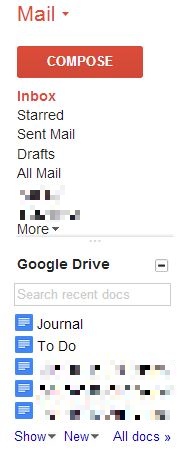
Here's the xml:
Works perfectly, for now.
Sunday, June 09, 2013
You're Holding It Wrong
Remember back in 2010 when there was the big hoopla over the iPhone 4's antenna? And Jobs' infamous quote "Just avoid holding it in that way,"
While it was clearly an issue with the iPhone 4, the phenomenon affected other phones as well.
Recently I was playing with the GPS in my Skyrocket. I noticed that the accuracy varied significantly depending on where I held the phone.
In this screen capture I was holding the phone at the bottom. And, yes, I was on an airplane.

The accuracy is 10 feet. Pretty good at 40,000 ft. and 470 MPH.
Then I moved my hands to cup the phone at the top. Accuracy quickly dropped to several hundred feet.

The number of satellites in use didn't decrease and the signal to noise ratio didn't change dramatically.
I wouldn't jump to the conclusion that this change in hand position affects the cellular signal in the same way. Still it is interesting.
While it was clearly an issue with the iPhone 4, the phenomenon affected other phones as well.
Recently I was playing with the GPS in my Skyrocket. I noticed that the accuracy varied significantly depending on where I held the phone.
In this screen capture I was holding the phone at the bottom. And, yes, I was on an airplane.

The accuracy is 10 feet. Pretty good at 40,000 ft. and 470 MPH.
Then I moved my hands to cup the phone at the top. Accuracy quickly dropped to several hundred feet.

The number of satellites in use didn't decrease and the signal to noise ratio didn't change dramatically.
I wouldn't jump to the conclusion that this change in hand position affects the cellular signal in the same way. Still it is interesting.
Sunday, May 19, 2013
Terms of Service Tracker

Sunday, May 12, 2013
Don't You Love AT&T/Comcast/Verizon
One morning recently my wife was complaining (rightly) about technology. She uses a Jensen Docking Speaker System with her iPhone for music in the morning. It would stream an Internet radio station for a few minutes then quit for a few minutes. Of course I "worked" on it but I couldn't make it better so she just turned it off.
When I got to the den and started checking my e-mail and RSS feeds, I noticed that the Internet would run for a few minutes then quit for a few minutes. Even DNS lookups would fail. Seemed vaguely familiar.
This persisted throughout the day. The utility companies are in the process of relocating the utility poles on my street so I assumed that AT&T had rerouted my DSL through a congested switch point.
I prided myself in being unusually tolerant but my patience ran out mid-afternoon. I called AT&T's DSL Repair Service. Luckily I had their number in my address book since I couldn't look it up online.
The first customer service representative I spoke to was "Derek" in India. I simply hung up on him. When I called back I got Mario in California. I explained what I'd observed and asked him to check for problems in my area.
Yeah, you guessed it. There were no problems noted in my area. So off he went after my equipment. His eventual diagnosis was that my 9 year old Westell DSL modem was defective and he'd be glad to replace it for $90. I declined.
Amazingly the defective modem healed itself overnight and now my Internet access is fine.
But the point here is how much is such poor operational information costing the carriers in their customer service departments? Wait, though. You and I are paying for the cost of the poor operational information in our ever increasing rates. And since the carriers usually have a government granted monopoly they really don't care.
When I got to the den and started checking my e-mail and RSS feeds, I noticed that the Internet would run for a few minutes then quit for a few minutes. Even DNS lookups would fail. Seemed vaguely familiar.
This persisted throughout the day. The utility companies are in the process of relocating the utility poles on my street so I assumed that AT&T had rerouted my DSL through a congested switch point.
I prided myself in being unusually tolerant but my patience ran out mid-afternoon. I called AT&T's DSL Repair Service. Luckily I had their number in my address book since I couldn't look it up online.
The first customer service representative I spoke to was "Derek" in India. I simply hung up on him. When I called back I got Mario in California. I explained what I'd observed and asked him to check for problems in my area.
Yeah, you guessed it. There were no problems noted in my area. So off he went after my equipment. His eventual diagnosis was that my 9 year old Westell DSL modem was defective and he'd be glad to replace it for $90. I declined.
Amazingly the defective modem healed itself overnight and now my Internet access is fine.
But the point here is how much is such poor operational information costing the carriers in their customer service departments? Wait, though. You and I are paying for the cost of the poor operational information in our ever increasing rates. And since the carriers usually have a government granted monopoly they really don't care.
Sunday, May 05, 2013
YouTube’s HTML5 Player
I'd forgotten about YouTube’s HTML5 player until I came across this Lifehacker post. If you're using a "modern" browser this should work fine.
To turn it on, go to http://www.youtube.com/html5 and opt in.

That was easy.
To turn it on, go to http://www.youtube.com/html5 and opt in.

That was easy.
Subscribe to:
Posts (Atom)