Showing posts sorted by date for query windows defender. Sort by relevance Show all posts

Sunday, December 28, 2025

Happy New Year 2026

It's time for my annual New Year's post. Most of these are oldies but goodies but still very applicable even for Windows 11.


Here's my list of things I think you should check once a year.

Some of the steps may be a little out of date but I think you can find your way around. If not, leave me a comment and I'll help.


You'll sleep better.

Sunday, November 02, 2025

PowerShell Scripts by Copilot

Ok, I've been down on AI (Artificial Intelligence). But it's not all negative.

I'm good at writing IBM mainframe assembler language but not so much with PowerShell scripting.

Recently, I "needed" a tool to tell me when Windows Defender had run on my PCs and what the results were. In that this was on Microsoft's Windows, I went to copilot.microsoft.com.

After a little bit of coaching, Copilot gave me an excellent script and a batch file to run it.

Here's the output:


Here's the script:

$scanTypes = @{ '0' = 'Quick'; '1' = 'Full'; '2' = 'Custom' }
$triggers  = @{ '0' = 'Unknown'; '1' = 'Scheduled'; '2' = 'Manual'; '3' = 'Real-time'; '4' = 'On-Demand'; '5' = 'Startup' }

Get-WinEvent -LogName "Microsoft-Windows-Windows Defender/Operational" -MaxEvents 100 |
  Where-Object { $_.Id -eq 1001 } |
  ForEach-Object {
    $xml = [xml]$_.ToXml()
    $data = $xml.Event.EventData.Data
    [PSCustomObject]@{
      TimeCreated = $_.TimeCreated
      ScanType    = $scanTypes[$data[3].'#text']
      Trigger     = $triggers[$data[5].'#text']
      Threats     = $data[10].'#text'
    }
  } | Format-Table -AutoSize
Read-Host "Press Enter to exit"

Here's the batch file:

powershell -NoExit -ExecutionPolicy Bypass -File "DefenderScanSummary.ps1"

That worked so well that I tried again.

I use Drive Snapshot to backup my systems. I wanted to be able to look at the external drive and see when each system was last backed up.

So I went back to Copilot.


Here's the script:

$usbDrive = "E:\"  # Change this to match your USB drive letter
$report = @()

# Get all system folders
$systemFolders = Get-ChildItem -Path $usbDrive -Directory

foreach ($folder in $systemFolders) {
    $systemName = $folder.Name
    $backupFiles = Get-ChildItem -Path $folder.FullName -Filter *.sna -File -ErrorAction SilentlyContinue
    $logFiles = Get-ChildItem -Path $folder.FullName -Filter *.log -File -ErrorAction SilentlyContinue

    # Get most recent backup
    $latestBackup = $backupFiles | Sort-Object LastWriteTime -Descending | Select-Object -First 1

    # Determine backup type from last 3 characters before .sna
    $latestType = "Unknown"
    if ($latestBackup) {
        $baseName = $latestBackup.BaseName
        if ($baseName.Length -ge 3) {
            $suffix = $baseName.Substring($baseName.Length - 3)
            switch ($suffix.ToLower()) {
                "ful" { $latestType = "Full" }
                "dif" { $latestType = "Differential" }
            }
        }
    }

    $latestDate = if ($latestBackup) { $latestBackup.LastWriteTime } else { "None" }

    # Calculate total size of backups
    $totalSizeMB = if ($backupFiles) {
        ($backupFiles | Measure-Object Length -Sum).Sum / 1MB
    } else {
        0
    }

    # Check for errors in logs
    $errors = @()
    foreach ($log in $logFiles) {
        $logContent = Get-Content $log.FullName -ErrorAction SilentlyContinue
        $logErrors = $logContent | Select-String -Pattern "error|failed|exception" -CaseSensitive
        if ($logErrors) {
            $errors += "$($log.Name): $($logErrors.Count) issues"
        }
    }

    $report += [PSCustomObject]@{
        System       = $systemName
        LatestBackup = if ($latestBackup) { "$($latestDate) ($latestType)" } else { "No backups found" }
        TotalSizeMB  = [math]::Round($totalSizeMB, 2)
        Errors       = if ($errors) { $errors -join "; " } else { "None" }
    }
}

# Display the report in PowerShell output
$report | Format-Table -AutoSize

So the AI tools aren't completely useless!

Tuesday, December 31, 2024

Happy New Year 2025

It's time for my annual New Year's post. Most of these are oldies but goodies but still very applicable even for Windows 11.

Here's my list of things I think you should check once a year.


Some of the steps may be a little out of date but I think you can find your way around. If not, leave me a comment and I'll help.


You'll sleep better.

Sunday, December 31, 2023

Happy New Year 2024

It's time for my annual New Year's post. Most of these are oldies but goodies but still very applicable even for Windows 11.

Here's my list of things I think you should check once a year.


Some of the steps may be a little out of date but I think you can find your way around. If not, leave me a comment and I'll help.


You'll sleep better.

Sunday, January 01, 2023

Happy New Year 2023

The start of a new year is a good time to review a few things and make sure everything is right. Here's my list of things I think you should check once a year.

Some of the steps may be a little out of date but I think you can find your way around. If not, leave me a comment and I'll help.


You'll sleep better.

Sunday, December 05, 2021

Happy New Year 2022

The start of a new year is a good time to review a few things and make sure everything is right. Here's my list of things I think you should check once a year.


Some of the steps may be a little out of date but I think you can find your way around. If not, leave me a comment and I'll help.

PayPal Preapproved Payments
Offline Backup
Certificate Store
Router Configuration
Windows Defender and Windows Defender Offline
Controlled Folder Access
System Restore

You'll sleep better.

Sunday, December 27, 2020

Happy 2021

This is a repost of my year-end post.

The start of a new year is a good time to review a few things and make sure everything is right. Here's my list of things I think you should check once a year.


Some of the steps may be a little out of date but I think you can find your way around. If not, leave me a comment and I'll help.

Sunday, January 12, 2020

Happy New Year

The start of a new year is a good time to review a few things and make sure everything is right. Here's my list of things I think you should check once a year.
Some of the steps may be a little out of date but I think you can find your way around. If not, leave me a comment and I'll help.

PayPal Preapproved Payments
Offline Backup
Certificate Store
Router Configuration
Windows Defender and Windows Defender Offline
Controlled Folder Access
System Restore

Sunday, September 22, 2019

Just Use Windows Defender

I'll get on my soap box again. Quit using third-party antivirus tools and use Windows Defender. Why? They are just too risky.


Reason #1: Kaspersky injected a unique identifier into the HTML of every website a user visited. And they had been doing this since 2015.

When called out on this they changed to a constant identifier. They might as well have been waving a red flag that this user is using Kaspersky so the hackers could hit you with a specific attack.

Reason #2: Symantec and Norton's anti-virus products BLOCKED Windows 7 updates. Microsoft has had a well publicized effort underway to move from signing their updates with SHA-1 to SHA-2. The August 2019 updates were the first signed with only SHA-2.

Symantec and Norton blocked the August 2019 updates!

Reason #3: Windows Defender continues to move up the rankings (PCMag, AV-TEST, Tom's Guide).

But you know Microsoft can't leave well enough alone. They are renaming Windows Defender to Microsoft Defender.

Sunday, August 04, 2019

2019-07 Cumulative Update for Windows 10 Version 1903

In late July Microsoft released a new cumulative update (the second one in July) for the Windows 10 version 1903 that includes a series of quality improvements.

Bleeping Computer has a thorough article (archive.is) on it.

It is an optional update and you have to click on a new "Download and install" option on Windows Update settings page to apply the patch.

It all worked fine for me but the list of "quality improvements" overwhelmed me.

  • Addresses an issue that fails to record a local user’s last sign in time even when the user has accessed the server’s network share. 
  • Addresses an issue that may sever the domain trust relationship when you enable Recycle Bin in the domain that established the trust relationship. 
  • Addresses an issue that prevents Windows Hello face authentication from working after a restart. 
  • Updates time zone information for Brazil. 
  • Addresses an issue to enable Microsoft Edge to print PDF documents that contain landscape and portrait-oriented pages correctly. 
  • Addresses an issue with PDFs that are configured to be opened only once in Microsoft Edge. 
  • Addresses an issue that may display colors incorrectly when viewing an image on 10-bit display panels. 
  • Addresses an issue that may prevent you from changing the display brightness when using certain graphics drivers after resuming from Sleep or Hibernation. 
  • Addresses an issue in which Windows Graphics Device Interface (GDI+) returns an empty font family name for Bahnschrift.ttf. 
  • Addresses an issue that may cause a mouse press and release event to sometimes produce an extra mouse move event. 
  • Addresses an issue that may cause the UI to stop responding for several seconds when scrolling in windows that have many child windows. 
  • Addresses an issue that fails to bypass automatic sign in (Autologon) when you press and hold the Shift key during startup. 
  • Addresses an issue that may prevent a device from going to Sleep mode when certain applications that rely on Bluetooth are open. 
  • Addresses an issue that may reduce Bluetooth audio quality when using certain audio profiles for extended periods. 
  • Addresses an issue that prevents Microsoft Application Virtualization (App-V) scripting from working if you run it when you’re not connected to a domain controller (DC). App-V scripting also fails when you run it in an environment that only contains Microsoft Azure Active Directory. 
  • Addresses an issue that causes an error if you open Microsoft OneDrive files on demand when User Experience Virtualization (UE-V) is enabled. To apply this solution, set the following DWORD to 1: HKEY_LOCAL_MACHINE\SOFTWARE\Microsoft\UEV\Agent\Configuration\ApplyExplorerCompatFix 
  • Addresses an issue with UE-V that may sometimes prevent exclusion paths from working. 
  • Addresses an issue that may cause a system that has a Trusted Platform Module (TPM) to stop working. 
  • Addresses an issue that prevents a system from recognizing a Microsoft account or Azure Active Directory account until the user signs out and signs in again. 
  • Addresses an issue that may prevent the Netlogon service from establishing a secure channel and reports the error, “0xC000007A – ERROR_PROC_NOT_FOUND.” 
  • Addresses an issue that fails to update the personal identification number (PIN) policy (minimum length, required digits and special characters, etc.) for Windows Hello for Business when a PIN already exists on the machine. 
  • Addresses an issue that causes failures to create a recovery drive (USB key) with the error, ”0x80042405[gle=0x00000715].” 
  • Addresses an issue that prevents an Android emulator based on the virtual machine platform from starting on some systems. 
  • Addresses an issue that uses a temporary profile to sign in a local user account when the account is configured with a mandatory roaming user profile. The error, “We can’t sign in to your account” appears. The Application event log contains Event 1521, and the event’s source is listed as the Microsoft-Windows-User Profiles Service. 
  • Addresses an issue that changes the status for Work Folders in File Explorer to 0x80C802A0 (ECS_E_SYNC_UPLOAD_PLACEHOLDER_FAILURE) after selecting Free up space. 
  • Addresses an issue that may cause a Remote Desktop Server to stop responding when someone who is using drive redirection disconnects. 
  • Addresses an issue that may cause the Remote Access Connection Manager (RASMAN) service to stop working. You may receive the error “0xc0000005” on devices that have the diagnostic data level manually configured to the non-default setting of 0. You may also receive an error in the Application section of Windows Logs in Event Viewer with Event ID 1000 referencing “svchost.exe_RasMan” and “rasman.dll”. This issue only occurs when a virtual private network (VPN) profile is configured as an Always On VPN (AOVPN) connection with or without a device tunnel.
  • Addresses an issue that causes applications on a container host to intermittently lose connectivity because of a port conflict with applications running on a container.
  • Addresses an issue that intermittently prevents connections to a corporate network when using Always On VPN with the IKEv2 protocol. Connections are not always automatically established, and manual connections sometimes fail. In this scenario, when you call the RasDial function from the command line for the target VPN connection, you receive the error, “ERROR_PORT_NOT_AVAILABLE(633)”.
  • Adds limited support for Windows voice dictation for Chinese Simplified, English (Australia, Canada, India, United Kingdom), French (France), German (Germany), Italian (Italy), Portuguese (Brazil), and Spanish (Mexico, Spain).
  • Addresses an issue with opening or using the Window-Eyes screen reader application that may result in an error and prevent some features from functioning as expected.
  • Addresses an issue that prevents an App-V application from opening and displays a network failure error. This issue occurs under certain circumstances, such as when a system's battery is low or there is an unexpected power failure.
  • Addresses an issue that prevents an App-V application from opening if the client is offline and a startup script is defined for the App-V application.
  • Addresses a rare issue that causes Windows Defender Advanced Threat Protection (ATP) to temporarily prevent other processes from accessing files.
  • Addresses an issue that causes the Start menu to stop responding when new users sign in to Windows 10, version 1903.
  • Updates the Windows Ink Workspace by simplifying the menu and adding direct integration with the Microsoft Whiteboard app for a richer collaboration experience.
Then there's a list of known issues in this update.

  • Windows Sandbox may fail to start with "ERROR_FILE_NOT_FOUND (0x80070002)" on devices in which the operating system language is changed during the update process when installing Windows 10, version 1903.

    Microsoft is working on a resolution and will provide an update in an upcoming release.
  • Devices that start up using Preboot Execution Environment (PXE) images from Windows Deployment Services (WDS) or System Center Configuration Manager (SCCM) may fail to start with the error "Status: 0xc0000001, Info: A required device isn't connected or can't be accessed" after installing this update on a WDS server.

    For mitigation instructions, see KB4512816. We are working on a resolution and will provide an update in an upcoming release.
  • Devices connected to a domain that is configured to use MIT Kerberos realms may not start up or may continue to restart after installation of this update. Devices that are domain controllers or domain members are both affected.
    If you are not sure if your device is affected, contact your administrator. Advanced users can check if this registry key exists HKLM\Software\Microsoft\Windows\CurrentVersion\Policies\System\Kerberos\MitRealms or for “Define interoperable Kerberos v5 realm settings” policy under Computer Configuration -> Policies -> Administrative Templates > System -> Kerberos.

    At this time, we suggest that devices in an affected environment do not install this update. We are working on a resolution and estimate a solution will be available in mid-August.
Scary.

Sunday, June 02, 2019

Windows 10 1903 Tamper Protection

If you're running Windows 10 Pro (and you should be) after you upgrade to Windows 10 May 2019 (Version 1903) you'll have a neat new feature that I haven't seen discussed anywhere.

Windows 10 1903 introduces Tamper Protection. Microsoft's support article is here.


Tamper Protection helps prevent malicious apps from changing important Windows Defender Antivirus settings.

Microsoft's page says "Tamper Protection is turned on by default." I didn't find that true.

To turn it on follow these steps:
  1. In the search box on the taskbar, type "Windows Security" and then select Windows Security in the list of results.
  2. In Windows Security, select "Virus & threat protection" and then under Virus & threat protection settings, select "Manage settings".
  3. Change the Tamper Protection setting to "On".
Enjoy.

Sunday, January 27, 2019

Controlled Folder Access - Windows 10 1809

I've been a big fan of Windows' Controlled Folder Access. Some of my coworkers have been "surprised" when it was enabled without their knowledge but I haven't experienced that. In fact I turn it on immediately when I build a new Windows system.

Over a recent long weekend I got on a tear upgrading 4 systems, desktops and laptops, to Windows 10 1809. I still haven't experienced any problems.

I've been posting about several new features in Windows 10 1809 that I think haven't gotten much press here, here, and here.

After my mass upgrade I've run into another unannounced feature that is valuable in relation to Controlled Folder Access.

In Windows 10 if a program violates the Controlled Folder Access you have established you get an ambiguous notification without enough information to act.


I Googled this and found that there is an event in the Event Viewer that has more information (archive.is). Here's how to get to it:

  1. Right-click on the Start button and select Event Viewer.
  2. Navigate to Applications and Services > Microsoft > Windows > Windows Defender > Operational
  3. Filter for (or just look for): Event ID 1123

Or you could just upgrade to Windows 10 1809.

Here's what the Controlled Folder Access Settings screen shows after an exception in 1803:


Not much help.

In 1809 here's what you get:


When you click on "Recently blocked apps" you get:


Nice.


Sunday, November 04, 2018

Windows Defender Sandbox

You're going to have to think about this one some.

Think about how any anti-virus program has to parse all the files on a system. A parser could inadvertently enable arbitrary code execution if that parser has any vulnerabilities.

So what to do?

Run the parser in a sandboxed environment where malicious actions are limited to the sandbox thereby protecting the rest of the system.

Microsoft's Windows Defender does this.
In other words, the Windows Defender antivirus process that analyzes downloaded files and other content will run with very few permissions.
How-To Geek
But it's not turned on by default.

To enable this feature click on the Start button, type "CMD", right click on "Command Prompt", and select "Run as administrator". Enter the following command:
setx /M MP_FORCE_USE_SANDBOX 1
Then restart your PC by holding SHIFT while you select Shutdown or Restart on the Start menu.

Sunday, October 28, 2018

Anti-Virus Comparison

I'm a regular listener to TWiT's Security Now podcast with Steve Gibson. On a recent podcast Steve mentioned AV-Comparatives' anti-virus testing.

If you're a regular reader of this blog you also know I'm a fan of Windows Defender.

AV-Comparatives' September 2018 test (PDF) showed that Windows Defender was in the very top performers.


Steve's assessment was:
Given that Microsoft is one of the 6 AVs with a perfect score, maybe just using the system built into Windows is sufficient protection.
That's what I use.

Sunday, May 27, 2018

Windows 10 April 2018 Update

At least it wasn't called Windows 10 Spring Creators Update.

Anyway...

Woody Leonhard of Computerworld is kind of a "Chicken Little" of Windows 10. To him, the Windows sky is always falling. I guess it gets him clicks.

My experience doesn't align with his and his readers. I've had nothing but success with Windows 10 April 2018 Update. I have it installed on 5 laptop systems of various vendors and 1 Dell desktop.

The only problem I had was that I built a USB drive from the Microsoft Insiders resources and installed the April 2018 Update from that hand-built USB drive. This triggered Controlled Folder Access and the update failed. Subsequently I've been turning off Controlled Folder Access before I update. Probably not necessary if you're using Windows Update.


But still you need to consider what Woody Leonhard observes and act prudently.

He recently posted that many people running Avast antivirus are having blue screens after the upgrade.

Reason enough to just run Windows Defender.

Sunday, May 06, 2018

Windows Defender Browser Protection

I'm a fan of Windows Defender. I've written about it several times.

In April 2018 Microsoft introduced Windows Defender Browser Protection for Chrome.

Yeah, you read that right: For Chrome

It's a Chrome extension. In less than a month it had more than 64,000 users and a 4 1/2 star rating in the Chrome store.

Here's (archive.is) Microsoft's product page.

Here's the description from the Chrome store:
The Windows Defender Browser Protection extension helps protect you against online threats, such as links in phishing emails and websites designed to trick you into downloading and installing malicious software that can harm your computer.

If you click a malicious link in an email or navigate to a site designed to trick you into disclosing financial, personal or other sensitive information, or a website that hosts malware, Windows Defender Browser Protection will check it against a constantly updated list of malicious URLs known to Microsoft.

If the malicious link matches one on the list, Windows Defender Browser Protection will show a red warning screen letting you know that the web page you are about to visit is known to be harmful, giving you a clear path back to safety with one click.
It doesn't seem to take up much memory.


Why not?

Oh, don't look for their privacy policy. But you're running Windows 10, aren't you?

Sunday, January 14, 2018

One More Log on the Fire

If you're a regular reader you'll know that I'm a proponent of using Windows Defender as my anti-virus. While that it's free is a big factor for me, that it doesn't introduce new vulnerabilities into Windows is even bigger.

I've discussed that here, here and here.

In Microsoft's announcement of their patches for Meltdown and Spectre they included the following:
Note: Customers will not receive the January 2018 security updates (or any subsequent security updates) and will not be protected from security vulnerabilities unless their antivirus software vendor sets the following registry key:
Read that again.

If your anti-virus vendor doesn't set a new registry key you will NEVER get another security update.

Now, certainly mainstream anti-virus vendors quickly complied.

But what that means is that mainstream anti-virus vendors have been using non-public kernel calls.

Don't do that.

Further if you don't run any anti-virus you must manually set that registry key or you will NEVER get another security update.
In cases where customers can’t install or run antivirus software, Microsoft recommends manually setting the registry key as described below in order to receive the January 2018 security updates.
There's a pertinent blog post here.

Sunday, November 05, 2017

Windows Defender Doesn't Suck

While I realize that's a left-handed compliment there's some meat behind it.

I've mentioned Windows Defender a couple of times recently non-disparagingly. I still believe the best protection for your Windows system is discretion. Just don't go to stupid places.

However it still makes me feel better to have some kind of anti-virus tool lurking in the background just in case somebody tricks me.

The AV-TEST Institute runs a couple of anti-virus bake-offs each year. The most recent results are here.

Tom's Guide has a good summary of the AV-TEST comparison. I love their recap.
Microsoft’s [Windows Defender] Protection score was 5.5 out of 6. For a program that was bottom-of-the-barrel just last year - and comes free with Windows - that’s not bad at all.

Sunday, October 29, 2017

Controlled Folder Access

Windows 10 Fall Creators Update (aka 1709) was released October 17, 2017.
Windows 10 Fall Creators Update includes a number of new features, including a replacement for OneDrive Placeholders, support for Windows Mixed Reality, the ability to more seamlessly connect to Windows PCs from iOS and Android phones and an improved Photos app experience.
ZDNet
I've installed it on a couple of laptops with no issues. I haven't seen any problems with it nor really any new features.

Except...

Windows 1709 has a new Windows Defender capability called "Controlled Folder Access".
A below-the-radar security feature in the Windows 10 Fall Creators Update ... can stop ransomware and other file-scrambling nasties dead.
The controlled folder access mechanism within Windows Defender prevents suspicious applications from changing the contents of selected protected folders.
The Register
To turn it on, click on the Windows key and type "Windows Defender Security Center". Click it and then click on "Virus & threat protection".


Then click on "Virus & threat protection settings".


You're getting warm.

Under "Controlled folder access", slide it to "On" and click on "Protected folders".


You can also add programs to the whitelist.


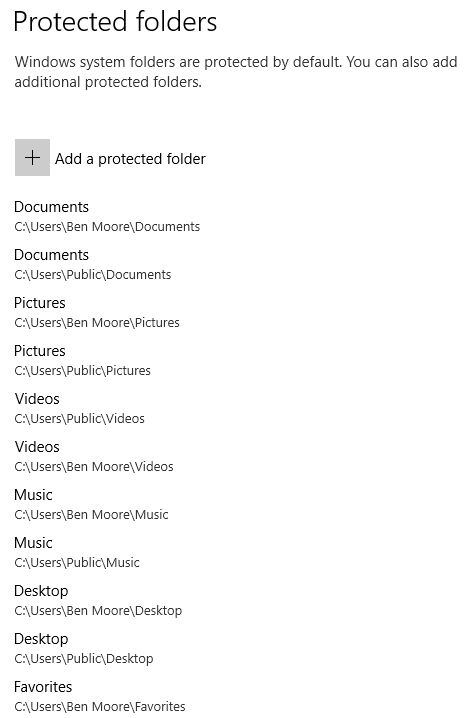
Here are the folders protected by default:


Add any that Windows didn't choose.

The best write-up I've found is here.

Here's what it looks like in action:


Sunday, August 06, 2017

Windows 10 Tweaks


I've been happy with Windows 10 AFTER I've thoroughly tweaked it. Here are some links to Windows 10 tweaks that I like. I will continue to update this post so check back from time to time.

My posts (some overlap with those below)

How to get past Windows Defender SmartScreen in Windows 10

Remove "Windows Defender Security Center" Icon from Taskbar Notification Area

How to disable touchscreen edge swipes in Windows 10

How to Remove the User Password in Windows 10

How to prevent Windows 10 from requiring a password when resuming from sleep

Bypass the Lock Screen in Windows 10

Sign-in Automatically to a User Account in Windows 10

Increase System Restore Point Frequency in Windows 10

Create Shortcut to Open Any Settings Page in Windows 10

Enable or Disable Network Discovery in Windows 10

Get Classic Windows Defender in Windows 10 Creators Update
I rename the shortcut to "Windows Defender" and pin it to the Start menu

How To Disable Ads in Windows 10 (All Of Them)

Move Apps to Another Drive in Windows 10

Convert MBR To GPT With MBR2GPT In Windows 10 Version 1703

Windows 10 Tip: Turn Off Lock Screen, Start and Action Center Advertising

Windows 10 Tip: Turn Off File Explorer Advertising

Windows 10 tip: Turn on File History for automatic backups

Windows Update Blocker disables OS updates on demand

20 ways to hate Windows 10 less

Windows Containers on Windows 10

Backup drivers before reinstalling Windows 10 using DISM

Windows 10 Tip: Remove the Built-in Apps

Disable This Animation to Make Windows 10's Start Menu Open Faster

How to add Recent items to left pane of File Explorer in Windows 10

Windows 10 Tip: Disable Automatic Default Printer Management

How to create a system image in Windows 10

How to Disable the “Get Office” Notifications on Windows 10

How to Get Rid of the OneDrive Icon in Windows 10's File Explorer

Open Control Panel Applets Directly in Windows 10