Following along on my recent post on ShakeCall I couldn't quite put my finger on what I didn't like about the Captivate's dialer application.
While browsing the appbrain's "Hot this week" I came across an alternative dialer app. In reading the comments there was quiet an outcry about the need to allow Internet access. Presumably this is for ads pulled from the Internet. In these comments was a reference to Dailer2.
It was a quick download and install and it works great.
Again I didn't tweak the settings much.
I replaced the dialer application in the tray with Dialer2.
When you launch it, you get a much cleaner and simpler dial pad.
The most recent contacts show up in a scrolling list on the screen.
You can tap and hold on a contact to get a list of all their contact methods and tap on the number you want to call.
If the desired contact isn't in that list you can scroll or use the T9 technique to search your contacts just like a real phone.
And the best part? It's free.
Friday, June 24, 2011
Friday, June 17, 2011
Android - ShakeCall
After learning how good a computer my Captivate is and what it lacks as a phone I am getting along very well with the Captivate. I still keep an eye out for tools that improve the phone experience.
As most of you know, answering a call on an Android requires swiping across the screen. Unless you have the digital dexterity of Houdini this takes two hands.
Tha app ShakeCall brings this back to one hand. To answer you simply shake the phone.
There are lots of settings but I didn't tweak them much. You can also shake to hang-up a call but I turned that off.
And the best part? It's free.
As most of you know, answering a call on an Android requires swiping across the screen. Unless you have the digital dexterity of Houdini this takes two hands.
Tha app ShakeCall brings this back to one hand. To answer you simply shake the phone.
There are lots of settings but I didn't tweak them much. You can also shake to hang-up a call but I turned that off.
And the best part? It's free.
Tuesday, June 14, 2011
An open letter to Gary Engel, Globat
An open letter to Gary Engel, Sr. Vice President, Sales and Customer Support at Globat.
I'm a long-term Globat customer. My hosting account came up for renewal this month. My last contract was for $3.75 per month for 36 months. When I called Sales on 6/13/11 and spoke to Amy the best rate she offered was $7.95 per month.
Then I had the following conversation via your online chat:
From these 2 interactions I have come to the conclusion that Globat no longer wants my hosting business.
I would like to renew my hosting with Globat at the same or lower rate than I have been paying. Can you arrange this for me?
I'm a long-term Globat customer. My hosting account came up for renewal this month. My last contract was for $3.75 per month for 36 months. When I called Sales on 6/13/11 and spoke to Amy the best rate she offered was $7.95 per month.
Then I had the following conversation via your online chat:
info: Thank you for contacting support. We are currently experiencing an issue with our email servers. Our Network Operations team is currently working on fixing it in order to restore email services as quickly as possible. We apologize for the inconvenience and appreciate your patience while we fix the issue. Please hold for the next available operator to respond.
info: You are now chatting with 'Matt Benson'
Matt Benson: Hi, how are you today?
Ben Moore: my domain (desotonet.com) it is up for renewal. My last contract was for $3.95 per month for 36 months. When I called Sales today and spoke to Amy the best rate she offered was $7.95 per month.
Matt Benson: Yes, that will be $95.40/yr.
Ben Moore: That's more than twice what I paid on my last renewal.
Matt Benson: Last year you have signed up with promotional offer. This offer is available only for the new sign-ups and is not applicable for the existing customers.
Matt Benson: Also, the offer price is valid only for the first term and it will be
changed to the regular price from the next term onwards.
Ben Moore: So you're basically running me off?
Ben Moore: That wasn't my first term with Globat.
Matt Benson: Okay.
Matt Benson: But, now we do not provide promotional offer for renewal.
Ben Moore: There's an offer out there for GX01 for $3.75. Is that available to me?
Matt Benson: That is promotional offer. This offer is available only for the new sign-ups and is not applicable for the existing customers.
Ben Moore: Good bye.
Matt Benson: Thank you for chatting with us. Please feel free to contact us at any time. We are available 24x7.
Matt Benson: Bye!
info: Chat session has been terminated by the site operator.
info: You are now chatting with 'Matt Benson'
Matt Benson: Hi, how are you today?
Ben Moore: my domain (desotonet.com) it is up for renewal. My last contract was for $3.95 per month for 36 months. When I called Sales today and spoke to Amy the best rate she offered was $7.95 per month.
Matt Benson: Yes, that will be $95.40/yr.
Ben Moore: That's more than twice what I paid on my last renewal.
Matt Benson: Last year you have signed up with promotional offer. This offer is available only for the new sign-ups and is not applicable for the existing customers.
Matt Benson: Also, the offer price is valid only for the first term and it will be
changed to the regular price from the next term onwards.
Ben Moore: So you're basically running me off?
Ben Moore: That wasn't my first term with Globat.
Matt Benson: Okay.
Matt Benson: But, now we do not provide promotional offer for renewal.
Ben Moore: There's an offer out there for GX01 for $3.75. Is that available to me?
Matt Benson: That is promotional offer. This offer is available only for the new sign-ups and is not applicable for the existing customers.
Ben Moore: Good bye.
Matt Benson: Thank you for chatting with us. Please feel free to contact us at any time. We are available 24x7.
Matt Benson: Bye!
info: Chat session has been terminated by the site operator.
From these 2 interactions I have come to the conclusion that Globat no longer wants my hosting business.
I would like to renew my hosting with Globat at the same or lower rate than I have been paying. Can you arrange this for me?
Friday, June 10, 2011
Android - Car Cast Podcast Player
I'm a voracious podcast listener in the car.
The Android Music Player left several things to be desired.
An Android Market search turned up Car Cast Podcast Player.
Once launched go to Settings and adjust as you need. I set it to automatically download, to require Wi-Fi to download, to automatically play the next podcast, uncheck to allow data collection and to keep your e-mail address secret (just off the bottom of this screen capture).
The Subscriptions screen allows you to enter your podcast feeds. After you enter them you can even test the url.
The Podcast screen shows your list of podcasts and lets you select a set of podcasts to delete. Car Cast will even highlight the ones you've already listened to and let you delete them with one click. From this screen you can also select which podcast you want to listen to by single clicking it.
The main screen gives you BIG buttons.
The << and >> buttons jump 30 seconds backwards or forward. The |< and >| buttons skip backwards and forwards through podcasts. You can even drag the marker along the time line.
The microphone button will let you make quick audio notes while you're driving.
There's also a paid version that lags a little behind the free version to improve stability.
The Android Music Player left several things to be desired.
An Android Market search turned up Car Cast Podcast Player.
Once launched go to Settings and adjust as you need. I set it to automatically download, to require Wi-Fi to download, to automatically play the next podcast, uncheck to allow data collection and to keep your e-mail address secret (just off the bottom of this screen capture).
The Subscriptions screen allows you to enter your podcast feeds. After you enter them you can even test the url.
The Podcast screen shows your list of podcasts and lets you select a set of podcasts to delete. Car Cast will even highlight the ones you've already listened to and let you delete them with one click. From this screen you can also select which podcast you want to listen to by single clicking it.
The main screen gives you BIG buttons.
The << and >> buttons jump 30 seconds backwards or forward. The |< and >| buttons skip backwards and forwards through podcasts. You can even drag the marker along the time line.The microphone button will let you make quick audio notes while you're driving.
There's also a paid version that lags a little behind the free version to improve stability.
Saturday, June 04, 2011
Yum! Gingerbread
One of the blogs I follow had an article recently that discussed how to turn the Nook Color into a complete tablet. It discusses installing Cyanogen's Android 2.3 "Gingerbread" on a microSD card and basically dual-booting the Nook Color. It sounds harder than it is.
I had rooted my Nook and am very happy with it but it still had some rough edges. The Nook doesn't present the expected function keys of other Android devices, i.e. Home, Back, Search, Menu. The root process installs an application to present these as floating hot spots but that just isn't the same.
I squirreled the Between the Lines article away and ordered me a 8GB Class 10 microSD card. That was a mistake. I'll explain in a minute.
When the microSD card came in, I started following the post referenced in the blog article. While this was running (Remember the 8GB Class 10 microSD card? I'm getting close to explaining.) I came across another post. This androidtablets.net post describes a way to consolidate some of the steps in the xda-developers.com post.
Unfortunately I didn't read the xda-developers.com post closely enough before I ordered the microSD card. I like their summary: "buy Sandisk-branded class 4 microSD cards." Amen.
That's why I had time to go surf around while the install was running. The xda-developers.com post links to another post with a table of benchmark results. Some of the Class 10 cards are 100 times slower than Sandisk Class 4 cards in a area that is key to the Nook Color performance.
Although the install process worked it took about an hour. I wasn't sure how long it was supposed to take but when it was done, the Nook Color functioned but it was sooooo slow.
Time to RTFM.
That's when I read the discussion on using a Sandisk Class 4 microSD card. I headed out to my local OfficeDepot and bought this.
When I started over, I used the process in the androidtablets.net post. The consolidation of steps and the new microSD card brought the install down to around 20 minutes!
The really bizarre thing is that the Nook is even faster running off the SD card than running off the internal memory. The reason why is here.
Wow is all I can say. The resulting Nook is awesome. Gingerbread is wonderful. Now the function keys are in the Android status bar. The Cyanogen guys even have Bluetooth working.
Try it. I'm sure you'll like it. If you don't you're only out $13.00 and less than an hour.
I had rooted my Nook and am very happy with it but it still had some rough edges. The Nook doesn't present the expected function keys of other Android devices, i.e. Home, Back, Search, Menu. The root process installs an application to present these as floating hot spots but that just isn't the same.
I squirreled the Between the Lines article away and ordered me a 8GB Class 10 microSD card. That was a mistake. I'll explain in a minute.
When the microSD card came in, I started following the post referenced in the blog article. While this was running (Remember the 8GB Class 10 microSD card? I'm getting close to explaining.) I came across another post. This androidtablets.net post describes a way to consolidate some of the steps in the xda-developers.com post.
Unfortunately I didn't read the xda-developers.com post closely enough before I ordered the microSD card. I like their summary: "buy Sandisk-branded class 4 microSD cards." Amen.
That's why I had time to go surf around while the install was running. The xda-developers.com post links to another post with a table of benchmark results. Some of the Class 10 cards are 100 times slower than Sandisk Class 4 cards in a area that is key to the Nook Color performance.
Although the install process worked it took about an hour. I wasn't sure how long it was supposed to take but when it was done, the Nook Color functioned but it was sooooo slow.
Time to RTFM.
That's when I read the discussion on using a Sandisk Class 4 microSD card. I headed out to my local OfficeDepot and bought this.
When I started over, I used the process in the androidtablets.net post. The consolidation of steps and the new microSD card brought the install down to around 20 minutes!
The really bizarre thing is that the Nook is even faster running off the SD card than running off the internal memory. The reason why is here.
Wow is all I can say. The resulting Nook is awesome. Gingerbread is wonderful. Now the function keys are in the Android status bar. The Cyanogen guys even have Bluetooth working.
Try it. I'm sure you'll like it. If you don't you're only out $13.00 and less than an hour.
Friday, June 03, 2011
Captchas
I think captchas have gone too far.
Yesterday I had some kind of error on my Captivate and it presented me a captcha. After I failed the first one I began screen capturing the challenge and my responses.
Here are those screen captures in a random order. Let's see who can pick the one that is correct. Now remember that these were presented on a 4 inch screen in bright sunlight.
Yesterday I had some kind of error on my Captivate and it presented me a captcha. After I failed the first one I began screen capturing the challenge and my responses.
Here are those screen captures in a random order. Let's see who can pick the one that is correct. Now remember that these were presented on a 4 inch screen in bright sunlight.
Monday, May 30, 2011
Android - Screen Capture Shortcut
One thing I immediately noticed on the Captivate was that there was no way to take a screen capture. I searched and all I found were several that required either rooting or USB cable connection to a PC.
Then on androidforums.com I found a post that referred to Screen Capture Shortcut.
There's a free version and a "donate" version. On the free version, when you launch it you'll find "capture from notification." Check that. Just below is "capture delay." I set that to 1 second. Then exit the app.
When you want to capture a screen drag the notification bar down and click on the "Screen Capture Shortcut" notification. After the delay period (1 second in my case) the screen will be captured and written to a folder in internal storage named "ScreenCapture." It appears that the donate version has an option to "capture on shake."
Then on androidforums.com I found a post that referred to Screen Capture Shortcut.
There's a free version and a "donate" version. On the free version, when you launch it you'll find "capture from notification." Check that. Just below is "capture delay." I set that to 1 second. Then exit the app.
When you want to capture a screen drag the notification bar down and click on the "Screen Capture Shortcut" notification. After the delay period (1 second in my case) the screen will be captured and written to a folder in internal storage named "ScreenCapture." It appears that the donate version has an option to "capture on shake."
Monday, May 23, 2011
TiVo
Comcast is becoming Xfinity. This is a made-up word meaning that they're going to take more of your money.
There is a long sordid story regarding clear QAM channels and Digital Transport Adapter (DTA, also known sarcastically as Digital To Analog) but that's for another time.
Along the way to Xfinity Comcast Memphis has reflashed their DVRs. The new software is being rolled out to a number of markets and seems to be universally disliked. Truthfully there are gains and losses in the new software but as usual the losses stand out.
Just like "you can't fight city hall" you pretty much can't fight Comcast. AT&T's U-verse isn't available in my neighborhood. I don't want satellite dishes on my roof and I hear too many complaints about signal loss during thunderstorms.
Anyway on to my TiVo experiences.
I had a co-worker that had an early TiVo and had been very satisfied with it. When I got to checking the prices I found that the monthly service for the TiVo Premier was less than the Comcast DVR, $12.95 vs. $15.95. To get the $12.95 rate I had to get a refurbished model for $99. The TiVo rates and prices have just changed recently. The required multi-scan Cablecard was free from Comcast. Will wonders never cease?
The TiVo came quickly and the setup was easy. I'd heard horror stories about Cablecard pairing but the Comcast technician that brought the Cablecard had 3 TiVos at home. That went quickly.
Everything seemed good but then I noticed that none of the networking functions worked. I knew that the network connection was good and TiVo's own self-test worked. To make a long story kinda short TiVo sent me a replacement unit that worked fine. Even the Comcast re-pairing of the Cablecard was done over the phone with no problems.
I got the regular TiVo Premier with a 320GB HD rather than the TiVo Premier XL with a 1 TB HD. My thinking was that I could move the eSATA drive that I have been using on the Comcast DVR. Unfortunately TiVo is pretty particular about what external drives they support and I haven't tried my drive. After a couple of weeks using the TiVo I haven't gotten over 40% full.
The TiVo's Season Pass is better than Comcast's DVR's series recording. You can also setup a Wish List to record all programs that match a search criteria, e.g. with a certain actor.
TiVo also records TiVo Suggestions programs based on what programs you've recorded and/or watched. This is pretty neat in that during the first week of using the TiVo I had not completed setting all my Season Passes and missed an episode of a series we watch. I shrugged my shoulders and created a Season Pass to record that series in the future. Later as I was browsing my Suggested programs there was the episode that we had missed! Incredible.
Another capability I love is the network connectivity. You can search for programs and when found the TiVo gives you an episode summary by season. When you choose an episode TiVo will tell you where it is available, e.g. Amazon Video On-Demand. It also supports Netflix (I may have to reinstate my subscription) and YouTube. As we watched the Indy 500 Pole Day Simone de Silvestro was on. Rather than trying to explain to my wife what had happened to her, I paused the live TV and went to YouTube and showed her de Silvestro's crashes from Thursday practice and from last year's Texas race. Nice. Probably impressed me more than my wife but ...
I haven't gotten around to reprogramming my Logitech remote but I've come across an Android app to control it over Wi-Fi from my Captivate and the NOOK Color.

I've also found a Java app that gives me the same function from Windows 7.
You can also schedule recordings via the Internet for the TiVo. I know Xfinity advertises this same capability but it's not available in my area.
I'm not sure that the TiVo is a long term solution. I looked at building a Windows 7 Media Center and may do that yet. It is going to feel pretty good walking into Comcast with that hard-to-find HD DVR and telling them to ...
There is a long sordid story regarding clear QAM channels and Digital Transport Adapter (DTA, also known sarcastically as Digital To Analog) but that's for another time.
Along the way to Xfinity Comcast Memphis has reflashed their DVRs. The new software is being rolled out to a number of markets and seems to be universally disliked. Truthfully there are gains and losses in the new software but as usual the losses stand out.
Just like "you can't fight city hall" you pretty much can't fight Comcast. AT&T's U-verse isn't available in my neighborhood. I don't want satellite dishes on my roof and I hear too many complaints about signal loss during thunderstorms.
Anyway on to my TiVo experiences.
I had a co-worker that had an early TiVo and had been very satisfied with it. When I got to checking the prices I found that the monthly service for the TiVo Premier was less than the Comcast DVR, $12.95 vs. $15.95. To get the $12.95 rate I had to get a refurbished model for $99. The TiVo rates and prices have just changed recently. The required multi-scan Cablecard was free from Comcast. Will wonders never cease?
The TiVo came quickly and the setup was easy. I'd heard horror stories about Cablecard pairing but the Comcast technician that brought the Cablecard had 3 TiVos at home. That went quickly.
Everything seemed good but then I noticed that none of the networking functions worked. I knew that the network connection was good and TiVo's own self-test worked. To make a long story kinda short TiVo sent me a replacement unit that worked fine. Even the Comcast re-pairing of the Cablecard was done over the phone with no problems.
I got the regular TiVo Premier with a 320GB HD rather than the TiVo Premier XL with a 1 TB HD. My thinking was that I could move the eSATA drive that I have been using on the Comcast DVR. Unfortunately TiVo is pretty particular about what external drives they support and I haven't tried my drive. After a couple of weeks using the TiVo I haven't gotten over 40% full.
The TiVo's Season Pass is better than Comcast's DVR's series recording. You can also setup a Wish List to record all programs that match a search criteria, e.g. with a certain actor.
TiVo also records TiVo Suggestions programs based on what programs you've recorded and/or watched. This is pretty neat in that during the first week of using the TiVo I had not completed setting all my Season Passes and missed an episode of a series we watch. I shrugged my shoulders and created a Season Pass to record that series in the future. Later as I was browsing my Suggested programs there was the episode that we had missed! Incredible.
Another capability I love is the network connectivity. You can search for programs and when found the TiVo gives you an episode summary by season. When you choose an episode TiVo will tell you where it is available, e.g. Amazon Video On-Demand. It also supports Netflix (I may have to reinstate my subscription) and YouTube. As we watched the Indy 500 Pole Day Simone de Silvestro was on. Rather than trying to explain to my wife what had happened to her, I paused the live TV and went to YouTube and showed her de Silvestro's crashes from Thursday practice and from last year's Texas race. Nice. Probably impressed me more than my wife but ...
I haven't gotten around to reprogramming my Logitech remote but I've come across an Android app to control it over Wi-Fi from my Captivate and the NOOK Color.

I've also found a Java app that gives me the same function from Windows 7.
You can also schedule recordings via the Internet for the TiVo. I know Xfinity advertises this same capability but it's not available in my area.I'm not sure that the TiVo is a long term solution. I looked at building a Windows 7 Media Center and may do that yet. It is going to feel pretty good walking into Comcast with that hard-to-find HD DVR and telling them to ...
Wednesday, May 18, 2011
Which Camera?
You may have read my earlier post about my Samsung CL-65 (actually 2 of them). For Christmas 2010 my wife surprised me with a Panasonic Lumix DMC-ZS7.
I'm really torn between the 2 cameras and I wanted to stop and recap the capabilities and differences of them.
First I'll list the capabilities and differences and then discuss them. Please note that this is not intended to be a comprehensive analysis but rather the capabilities and differences that are important to me. You may have different objectives.
UI
While the Samsung's "gee whiz" touchscreen is fun at first, eventually you will find yourself bumping it when you don't intend to and changing something. If you're lucky you'll realize what it is and undo the change. If you're not lucky, ... You will eventually get to where you struggle to find a way to hold the camera for a long time with it turned on where you don't bump the touchscreen. This is especially problematic when you're waiting on the GPS to acquire satellites.
GPS
While we're talking about the GPS, there are significant and undocumented differences in the way each of these cameras' GPS works. The Samsung's GPS wakes up when you turn the camera on and starts trying to acquire satellites. If it is a "cold" GPS start it'll take a couple of minutes, sometimes longer than you want. If it is a "hot" GPS start, it'll take up to a minute. It could be better but it's actually good enough. Once it acquires the satellites the Samsung seems to continue updating the location. If you go look at this Picasaweb album you can actually track my walking around.
Panasonic's site says "By simply turning on the GPS function, the location data and time are automatically updated." Don't believe everything you read on the web.
The Panasonic actually keeps waking up the GPS periodically even when the camera is turned off. This should reduce the satellite acquisition time. Should is the operative word. If you store the Panasonic in a location where it can't acquire satellites all this does is run the battery down. What I did find significant was that the Panasonic only updates the GPS about every 5 minutes even when the camera is turned on. Look at this Picasaweb album and you'll see the pictures clustered where the Panasonic updated its GPS. The photos show only two locations although I clearly walked all around the house and yard.
This is apparently by design by Panasonic to reduce power consumption. There's even an icon on the screen that tells you this once you understand the issue.
You can force the Panasonic to update its GPS but that's not practical when you're walking around taking shots.
You can see this in several users' reviews on Amazon here and here.
For the trolls out there I am running Firmware version 1.2 on the Panasonic.
Optical Zoom
The numbers say everything. When you need to get up close and personal take the Panasonic.
Lens Design
The Samsung has a clever design that allows the lens to be completely contained within the compact size of the camera. The Panasonic has a traditional lens that protrudes as soon as you power on the camera and extends when you increase the zoom.
Process to Record Video
This gets back to the whole touchscreen UI issue but it is a real example. With the Samsung, you have to touch the mode section on the touchscreen and then select movie mode. This is hard to do one-handed.
On the Panasonic there is a dedicated button that starts taking video when you push it. "Piece of cake" as one of my former co-workers used to say.
Media
The Samsung takes a micro SD and the Panasonic takes a standard SD. They're close enough to the same price now as to not matter and almost all micro SDs come with a micro SD to SD adapter.
But that's just the point. The micro SD requires you to keep up with one more adapter and I can't see that much size advantage especially when you compare it to the battery. Yeah both cameras present removable drives to your computer when attached via USB but still ...
Charging
Why can't everything just charge off of a mini-USB? I know the EU has selected micro-USB and even that'd be Ok.
Both of these cameras charge using proprietary techniques. The Samsung at least uses a USB-powered cable but it's specific to this camera. To charge the Panasonic you have to remove the battery and put it in a charging shoe that plugs into the wall. While it will accept 110V or 240V it only has a US plug so that will require an adapter when I go abroad.
Connectivity
While the Samsung sounds like it has a definite advantage don't judge too soon. According Samsung's user guide Bluetooth connectivity is limited to "you can send photos only to mobile phones or PDAs" so you can't Bluetooth transfer them to your laptop. Using the Wi-Fi I've only been able to connect with no security or WEP security (isn't that the same thing?). Samsung's customer support couldn't help either. And DLNA, you get bonus points if you know what that is.
Size
The two cameras are almost identical size in every dimension except depth where the Panasonic is slightly more than .5 inches thicker. You'll quickly see how much this matters when you try to slip it into the pocket of last year's jeans. Enough said.
Conclusion
I don't know. I like them both and am using them both. My general thinking is that if I'm going to be outside where the GPS can acquire satellites the Samsung is my preference. But if I need a long reaching zoom or quick video it's the Panasonic.
I'm really torn between the 2 cameras and I wanted to stop and recap the capabilities and differences of them.
First I'll list the capabilities and differences and then discuss them. Please note that this is not intended to be a comprehensive analysis but rather the capabilities and differences that are important to me. You may have different objectives.
| Feature | Samsung | Panasonic |
| UI | Touch screen | Traditional buttons |
| GPS frequency | Continuous | ~ Every 5 minutes |
| Optical zoom | 5X | 12X |
| Lens design | Internal | Traditional |
| Process to record video | Touch screen navigation | One button |
| Media | Micro SD | SD |
| Charging | USB | Remove battery |
| Connectivity | Bluetooth, Wi-Fi, DLNA | None |
| Overall size | 3.94 x 2.4 x .75 | 4.07 x 2.35 x 1.28 |
UI
While the Samsung's "gee whiz" touchscreen is fun at first, eventually you will find yourself bumping it when you don't intend to and changing something. If you're lucky you'll realize what it is and undo the change. If you're not lucky, ... You will eventually get to where you struggle to find a way to hold the camera for a long time with it turned on where you don't bump the touchscreen. This is especially problematic when you're waiting on the GPS to acquire satellites.
GPS
While we're talking about the GPS, there are significant and undocumented differences in the way each of these cameras' GPS works. The Samsung's GPS wakes up when you turn the camera on and starts trying to acquire satellites. If it is a "cold" GPS start it'll take a couple of minutes, sometimes longer than you want. If it is a "hot" GPS start, it'll take up to a minute. It could be better but it's actually good enough. Once it acquires the satellites the Samsung seems to continue updating the location. If you go look at this Picasaweb album you can actually track my walking around.
Panasonic's site says "By simply turning on the GPS function, the location data and time are automatically updated." Don't believe everything you read on the web.
The Panasonic actually keeps waking up the GPS periodically even when the camera is turned off. This should reduce the satellite acquisition time. Should is the operative word. If you store the Panasonic in a location where it can't acquire satellites all this does is run the battery down. What I did find significant was that the Panasonic only updates the GPS about every 5 minutes even when the camera is turned on. Look at this Picasaweb album and you'll see the pictures clustered where the Panasonic updated its GPS. The photos show only two locations although I clearly walked all around the house and yard.
This is apparently by design by Panasonic to reduce power consumption. There's even an icon on the screen that tells you this once you understand the issue.
You can see this in several users' reviews on Amazon here and here.
For the trolls out there I am running Firmware version 1.2 on the Panasonic.
Optical Zoom
The numbers say everything. When you need to get up close and personal take the Panasonic.
Lens Design
The Samsung has a clever design that allows the lens to be completely contained within the compact size of the camera. The Panasonic has a traditional lens that protrudes as soon as you power on the camera and extends when you increase the zoom.
Process to Record Video
This gets back to the whole touchscreen UI issue but it is a real example. With the Samsung, you have to touch the mode section on the touchscreen and then select movie mode. This is hard to do one-handed.
On the Panasonic there is a dedicated button that starts taking video when you push it. "Piece of cake" as one of my former co-workers used to say.
Media
The Samsung takes a micro SD and the Panasonic takes a standard SD. They're close enough to the same price now as to not matter and almost all micro SDs come with a micro SD to SD adapter.
But that's just the point. The micro SD requires you to keep up with one more adapter and I can't see that much size advantage especially when you compare it to the battery. Yeah both cameras present removable drives to your computer when attached via USB but still ...
Charging
Why can't everything just charge off of a mini-USB? I know the EU has selected micro-USB and even that'd be Ok.
Both of these cameras charge using proprietary techniques. The Samsung at least uses a USB-powered cable but it's specific to this camera. To charge the Panasonic you have to remove the battery and put it in a charging shoe that plugs into the wall. While it will accept 110V or 240V it only has a US plug so that will require an adapter when I go abroad.
Connectivity
While the Samsung sounds like it has a definite advantage don't judge too soon. According Samsung's user guide Bluetooth connectivity is limited to "you can send photos only to mobile phones or PDAs" so you can't Bluetooth transfer them to your laptop. Using the Wi-Fi I've only been able to connect with no security or WEP security (isn't that the same thing?). Samsung's customer support couldn't help either. And DLNA, you get bonus points if you know what that is.
Size
The two cameras are almost identical size in every dimension except depth where the Panasonic is slightly more than .5 inches thicker. You'll quickly see how much this matters when you try to slip it into the pocket of last year's jeans. Enough said.
Conclusion
I don't know. I like them both and am using them both. My general thinking is that if I'm going to be outside where the GPS can acquire satellites the Samsung is my preference. But if I need a long reaching zoom or quick video it's the Panasonic.
Tuesday, May 10, 2011
SSH Tunneling
I'm still worried about privacy at public hotspots. I use https on everything that I can and just don't use confidential data on any service that doesn't support https. But you just never know. Firesheep scares me.
One of my co-workers uses LogMeIn Pro and does all his "work" on his home PC. That angle interested me but while I use LogMeIn Free for occasional remote access it requires a persistent application running on the target PC. And LogMeIn only uses a userid/password for access security.
I wondered if there wasn't something that I could do in my router. I discovered that dd-wrt supports SSH Tunnels (I don't agree with the "easy" adjective).
I decided that I wanted this SSH tunnel to "land" on a virtual machine on my home PC. That way I can closely manage what that "PC" has access to on my home network.
I found a refurbished Cisco E2000 for less than $40 that has a gigabit switch, 802.11N Wi-Fi, and supports dd-wrt.
I'm really big into portable apps that run from my USB drive so a friend pointed me to PortaPuTTY.
Configuring PortaPuTTY wasn't obvious to me either (hmmm, there's a pattern here) but with my friend's generous help I got it working!
One of the first things you need to do is to generate a key pair for the SSH session. PortaPuTTY has a key generator included.
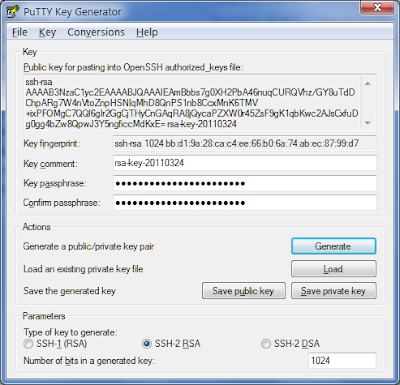
Notice that you also have to establish a passphrase so that even if you lose the USB drive you're still protected.
dd-wrt "support" is the typical open source support. They do miracles but communication is not their strong suite. I finally found the bits for my router and the flashing was easy. dd-wrt is certainly a very capable firmware and gives so much more information than OEM firmware.
To enable the SSH support in dd-wrt v24 and higher go to Administration/Management and enable "SSH Management" and put in a value for "SSH Remote Port." We'll use that later.
Now go to Services/Services and scroll down to "Secure Shell". Enable "SSHd". Enter the port from above. Paste into "Authorized Keys" the key from PuTTY Key Generator.
Be sure to click on "Save" at the bottom.
Then I put the private key in the PortaPuTTY folder on the USB drive. Whew! And we're just getting started.
Next in PortaPuTTY you'll need to set the "Host Name (or IP address)" for your home system. If you don't have a fixed IP address you'll need to use dyndns or something similar (dd-wrt has an embedded solution). For "Port" use the value for "SSH Remote Port" that you used in dd-wrt. I strongly suggest that you use a non-standard port.
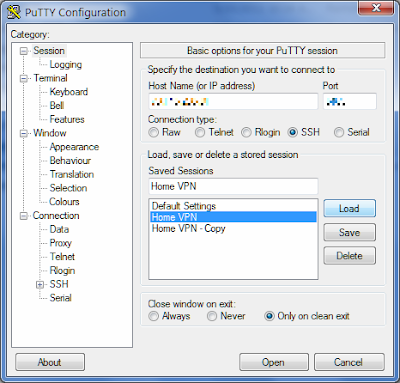
When you're done you'll come back to this screen and save the session information.
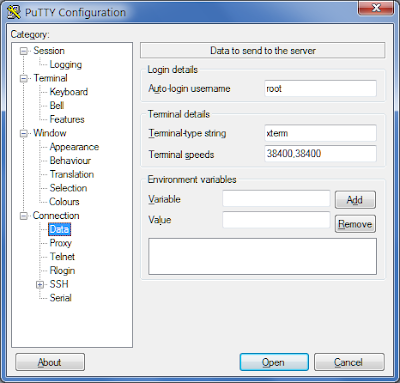
Next go down to "Connection" and "Data" and enter "root" as the "Auto-login username". This is required by dd-wrt's SSH support.
Expand the "SSH" selection and click on "Auth". Click on "Browse" and find the private key file created above.
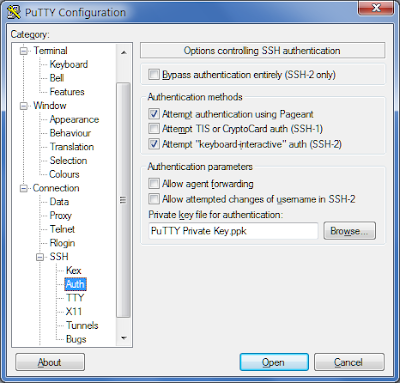
Click on "Open" and when you get back to this screen delete all the path information except the file name. That'll let you run this regardless of what drive letter is assigned to your USB drive.
Go down to the "Tunnels" section and put a port of your choosing in the "Port" field. I used 4444 but it doesn't matter much. In the "Destination" field, put the local address, e.g. 192.168.0.107, and a colon and then "3389". This assumes that the listening service on the target PC uses 3389 which is the default for Remote Desktop Protocol.
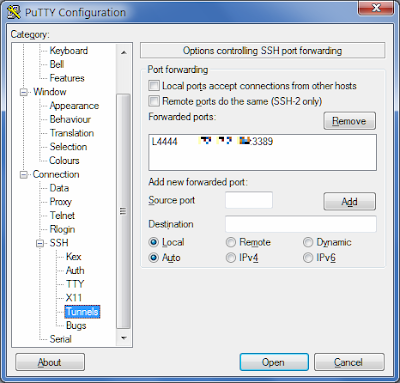
Click on "Add."
You don't need to change the RDP port number to a non-standard value because it is not advertised on the Internet, only to the LAN. The router's NAT firewall ensures that. You can change it if you want to.
I'm using Oracle's VirtualBox which allows you to have multiple VRDPs (Virtual Remote Desktop Protocols) running for different Virtual Machines. You do this by specifying VRDP ports for each one.
Note that the IP address here is the address of the PC running the Virtual Machines, not the IP address of the Virtual Machines proper. This is because the VirtualBox service offers the VRDP sessions for the Virtual Machines. Whew again!
Don't forget to go back to the first screen and save this session configuration. Incidentally the reason that PortaPuTTY is portable is that it saves the session information in the .putty/sessions sub-folder.
At this point I go into the PortaPuTTY .putty/sessions sub-folder and mark that session file I just created as read-only.
Next you'll need to create a RDP profile. Go to Start/All Programs/Accessories/Remote Desktop Connection.
In the first screen put "localhost:4444" or whatever port you specified above.
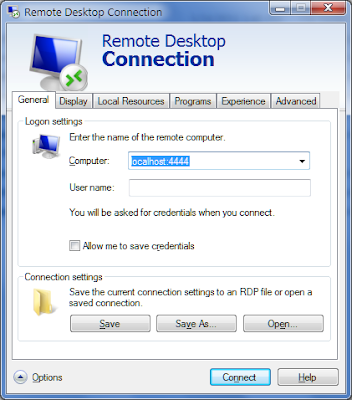
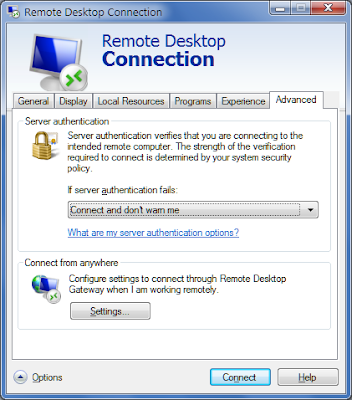
The following screens are my other settings. You may have your own preferences here.
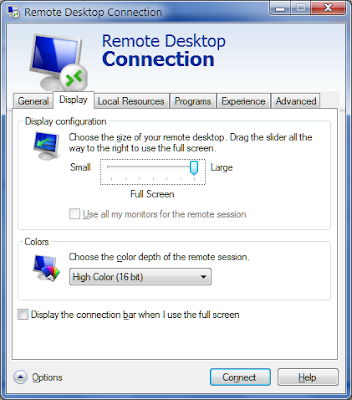


Remember to go back to the "General" tab and save the profile in the PortaPuTTY directory. Click the red "X" to close this.
I still use PStart to manage my USB drive.
Here're the parameters I use for the SSH entry.
And for the RDP session.
Go to the PStart menu and double click on the "Start SSH Client" entry.
You'll get this screen. Enter the passphrase you created above.
Now go back to PStart and double click on the "RDP to Home VM" entry.
When you're done with the SSH session, close the RDP session. Go back to the SSH window and enter "exit" and press Enter.
Remember that your speed is limited to the home's upload speed. For me that's AT&T's DSL Xtreme 6.0 at 512 Kbps (yeah, right).
Good luck.
Thanks to splashup for the image editing for this post.
One of my co-workers uses LogMeIn Pro and does all his "work" on his home PC. That angle interested me but while I use LogMeIn Free for occasional remote access it requires a persistent application running on the target PC. And LogMeIn only uses a userid/password for access security.
I wondered if there wasn't something that I could do in my router. I discovered that dd-wrt supports SSH Tunnels (I don't agree with the "easy" adjective).
I decided that I wanted this SSH tunnel to "land" on a virtual machine on my home PC. That way I can closely manage what that "PC" has access to on my home network.
I found a refurbished Cisco E2000 for less than $40 that has a gigabit switch, 802.11N Wi-Fi, and supports dd-wrt.
I'm really big into portable apps that run from my USB drive so a friend pointed me to PortaPuTTY.
Configuring PortaPuTTY wasn't obvious to me either (hmmm, there's a pattern here) but with my friend's generous help I got it working!
One of the first things you need to do is to generate a key pair for the SSH session. PortaPuTTY has a key generator included.
Notice that you also have to establish a passphrase so that even if you lose the USB drive you're still protected.dd-wrt "support" is the typical open source support. They do miracles but communication is not their strong suite. I finally found the bits for my router and the flashing was easy. dd-wrt is certainly a very capable firmware and gives so much more information than OEM firmware.
To enable the SSH support in dd-wrt v24 and higher go to Administration/Management and enable "SSH Management" and put in a value for "SSH Remote Port." We'll use that later.
Then I put the private key in the PortaPuTTY folder on the USB drive. Whew! And we're just getting started.
Next in PortaPuTTY you'll need to set the "Host Name (or IP address)" for your home system. If you don't have a fixed IP address you'll need to use dyndns or something similar (dd-wrt has an embedded solution). For "Port" use the value for "SSH Remote Port" that you used in dd-wrt. I strongly suggest that you use a non-standard port.
When you're done you'll come back to this screen and save the session information.Next go down to "Connection" and "Data" and enter "root" as the "Auto-login username". This is required by dd-wrt's SSH support.
Expand the "SSH" selection and click on "Auth". Click on "Browse" and find the private key file created above.
Click on "Open" and when you get back to this screen delete all the path information except the file name. That'll let you run this regardless of what drive letter is assigned to your USB drive.Go down to the "Tunnels" section and put a port of your choosing in the "Port" field. I used 4444 but it doesn't matter much. In the "Destination" field, put the local address, e.g. 192.168.0.107, and a colon and then "3389". This assumes that the listening service on the target PC uses 3389 which is the default for Remote Desktop Protocol.
Click on "Add."You don't need to change the RDP port number to a non-standard value because it is not advertised on the Internet, only to the LAN. The router's NAT firewall ensures that. You can change it if you want to.
I'm using Oracle's VirtualBox which allows you to have multiple VRDPs (Virtual Remote Desktop Protocols) running for different Virtual Machines. You do this by specifying VRDP ports for each one.
Note that the IP address here is the address of the PC running the Virtual Machines, not the IP address of the Virtual Machines proper. This is because the VirtualBox service offers the VRDP sessions for the Virtual Machines. Whew again!
Don't forget to go back to the first screen and save this session configuration. Incidentally the reason that PortaPuTTY is portable is that it saves the session information in the .putty/sessions sub-folder.
At this point I go into the PortaPuTTY .putty/sessions sub-folder and mark that session file I just created as read-only.
Next you'll need to create a RDP profile. Go to Start/All Programs/Accessories/Remote Desktop Connection.
In the first screen put "localhost:4444" or whatever port you specified above.
The following screens are my other settings. You may have your own preferences here.
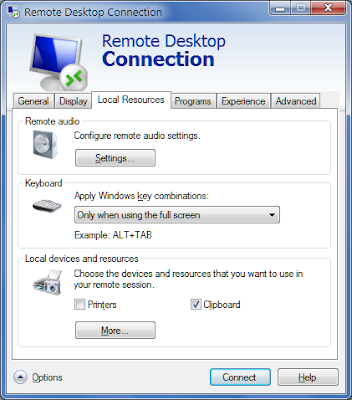

Remember to go back to the "General" tab and save the profile in the PortaPuTTY directory. Click the red "X" to close this.I still use PStart to manage my USB drive.
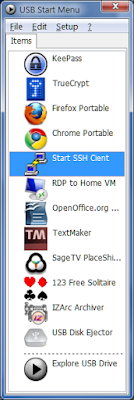
Here're the parameters I use for the SSH entry.
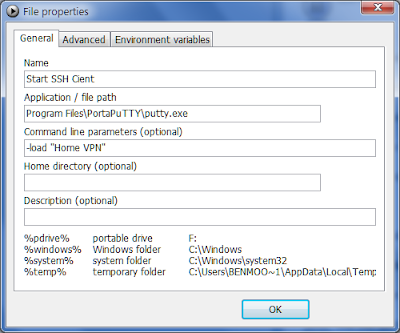
And for the RDP session.
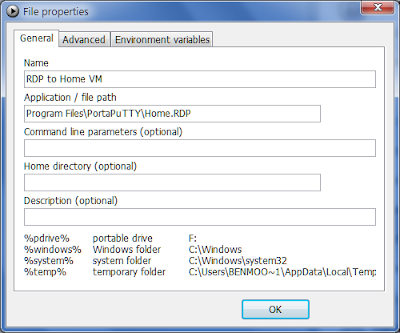
Go to the PStart menu and double click on the "Start SSH Client" entry.You'll get this screen. Enter the passphrase you created above.
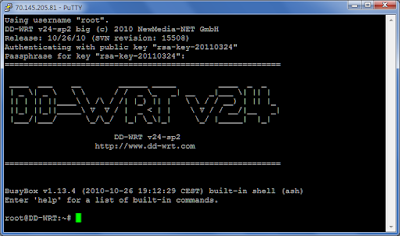
Now go back to PStart and double click on the "RDP to Home VM" entry.
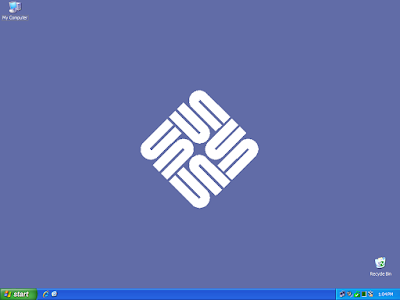
When you're done with the SSH session, close the RDP session. Go back to the SSH window and enter "exit" and press Enter.Remember that your speed is limited to the home's upload speed. For me that's AT&T's DSL Xtreme 6.0 at 512 Kbps (yeah, right).
Good luck.
Thanks to splashup for the image editing for this post.
Wednesday, April 06, 2011
There's an App for That
Huh? I was searching for a swype application for my daughter's iPhone (unsuccessfully I might add) and found some hits on ipadforums.net.
When I clicked on the link I got the following pop-up on my Captivate.
I guess they realize where the market is going too.
When I clicked on the link I got the following pop-up on my Captivate.
I guess they realize where the market is going too.
Sunday, February 27, 2011
Yum! Frozen Yogurt
Samsung and AT&T finally got their Android 2.2 (FroYo) update pushed out to Captivates. I lurked in the forums for a couple of days and then went for it this morning.
All is well.
It took about an hour end to end using the instructions from Samsung. The only unclear points are a couple of times when it says things like Step 3.2 "It will do this for several devices and may take a few moments." Wonder how long a "few moments" is? And in Step 3.3 "Once the computer has finished..." I just waited 2 minutes after the last message and went on to the next step.
When the upgrade was done on the phone it buzzed for several minutes and then rebooted. It seemed like it took an extra long time to boot up but all was fine. It went through a new phone type setup. I had to redo my home screens but I had documented this beforehand so that was easy. All my local documents and pictures were fine.
I went to the market and got the new Gmail app. This allows me to send from alternate e-mail addresses. I also had to reset my settings in Gmail, things like how many days to sync which labels.
Pressing and holding the Home key brings up recent tasks like Android 2.1 did but also has a button for a Task Manager.
I've played with the GPS a little inside and haven't seen a miraculous improvement.
Google Docs are editable with Android 2.2 but I've discovered that the documents have to be in the newer format. I'm still using some documents in the old format. You can edit them using Quickoffice that came with AT&T's OTA update last year.
All is well.
It took about an hour end to end using the instructions from Samsung. The only unclear points are a couple of times when it says things like Step 3.2 "It will do this for several devices and may take a few moments." Wonder how long a "few moments" is? And in Step 3.3 "Once the computer has finished..." I just waited 2 minutes after the last message and went on to the next step.
When the upgrade was done on the phone it buzzed for several minutes and then rebooted. It seemed like it took an extra long time to boot up but all was fine. It went through a new phone type setup. I had to redo my home screens but I had documented this beforehand so that was easy. All my local documents and pictures were fine.
I went to the market and got the new Gmail app. This allows me to send from alternate e-mail addresses. I also had to reset my settings in Gmail, things like how many days to sync which labels.
Pressing and holding the Home key brings up recent tasks like Android 2.1 did but also has a button for a Task Manager.
I've played with the GPS a little inside and haven't seen a miraculous improvement.
Google Docs are editable with Android 2.2 but I've discovered that the documents have to be in the newer format. I'm still using some documents in the old format. You can edit them using Quickoffice that came with AT&T's OTA update last year.
Friday, February 18, 2011
Android Bandwidth
I've had my AT&T Captivate (Samsung Galaxy S) for almost 2 months, long enough to get an insight into the bandwidth usage. AT&T does a good job of tracking the usage and presenting it in an organized manner.
My wife now has my BlackBerry Curve using it for her work e-mail. She doesn't really use any other data on it.
Here's what the last 6 months of her data usage looks like. Look carefully at the units down the left axis. It pretty well tops out just under 4 MB per month.
Now here's my last 6 months of data usage. The first 4 months are on my BlackBerry Bold and the last 2 on the Samsung Captivate.
Wow!
And I have the Captivate setup to use Wi-Fi wherever possible. I don't stream anything. I download podcasts but I have that set to only download using Wi-Fi.
I have the grandfathered AT&T "unlimited" plan. Even so, I'm well within the currently offered 2 GB plan. Still, that's a huge jump in data traffic.
My wife now has my BlackBerry Curve using it for her work e-mail. She doesn't really use any other data on it.
Here's what the last 6 months of her data usage looks like. Look carefully at the units down the left axis. It pretty well tops out just under 4 MB per month.
Now here's my last 6 months of data usage. The first 4 months are on my BlackBerry Bold and the last 2 on the Samsung Captivate.
Wow!And I have the Captivate setup to use Wi-Fi wherever possible. I don't stream anything. I download podcasts but I have that set to only download using Wi-Fi.
I have the grandfathered AT&T "unlimited" plan. Even so, I'm well within the currently offered 2 GB plan. Still, that's a huge jump in data traffic.
Wednesday, January 26, 2011
I've Been Captivated
I've been getting hand-me-down phones from my son-in-law until he upgraded from his iPhone 3GS to an iPhone 4. He gave the 3GS to my daughter!
I never wanted an iPhone anyway. ;)
I had been watching Android phones. AT&T was slow to get Android phones, perhaps because they had the iPhone. They finally got the HTC Aria and the Samsung Captivate (a Galaxy S variant).
My rationale was to wait until these devices were upgraded to Android 2.2. The reason was that I wanted the newest Gmail and Google Docs applications and tethering (really unlikely due to AT&T).
Then the battery in my BlackBerry Bold started to get less and less capacity. And the holster broke. I needed some kind of excuse!
I thought I wanted the Aria until I touched the Captivate. It's so slim and light and the OLED screen is so bright!
Just before Christmas I discovered that AT&T had refurbished Captivates on their web site for $9.99. Yes, the decimal is in the correct place.
Compared to the iPhone 4 the Captivate is lighter with a bigger screen. And it doesn't need iTunes. Did I mention that it's cheaper?
There's a great comparison here.
When it arrived, I had never played with an Android. I spent the next 12 hours playing. It's amazing.
I use Google Hosted Apps to host the e-mail for my domain so I was able to use my domain e-mail as the Google account. I expected everything to work smoothly but I wasn't prepared for how well integrated all the Google services were.
I was used to the BlackBerry BIS e-mail being quick to deliver but it was really a copy of my Google e-mail. So when I deleted an e-mail from the BlackBerry I still had to dispose of it on my Google e-mail. On the Captivate, I can archive an e-mail on the phone and when I look over to my web Google e-mail, the e-mail has disappeared.
The calendar is the same. Today I created an event on my web Google calendar. As soon as I saved it, the phone buzzed. That was the notification for the new event.
I have been challenged by the battery life. I did all the suggestions I found in the forums with little success. AT&T exchanged the phone for me and the new one seems to be some better but still erratic. Most days I have 50%-60% at the end of the work day but then some days it'll be 20% and complaining. I can't discern a pattern nor cause. I've just laid in microUSB cables at strategic locations to recharge but I really haven't needed them.
I use Wi-Fi (802.11n) heavily at home and at work. The work network uses 802.1x authentication and with a little fiddling it works great.
The original phone's GPS was good. This is apparently a problem area with Galaxy S phones. The new phone's GPS is Ok but not as good as the original phone. I guess I'd rather have better battery life than a quick GPS.
I'm not an app hog but I've installed a number of apps from the market. AT&T has restricted the Captivate to only Android Market apps but that hasn't been an issue.
Here's what I've installed:
I haven't rooted it like I did the NOOKcolor and don't expect to. If Samsung and AT&T don't ever deliver Android 2.2 then I'll have to reconsider this.
I never wanted an iPhone anyway. ;)
I had been watching Android phones. AT&T was slow to get Android phones, perhaps because they had the iPhone. They finally got the HTC Aria and the Samsung Captivate (a Galaxy S variant).
My rationale was to wait until these devices were upgraded to Android 2.2. The reason was that I wanted the newest Gmail and Google Docs applications and tethering (really unlikely due to AT&T).
Then the battery in my BlackBerry Bold started to get less and less capacity. And the holster broke. I needed some kind of excuse!
I thought I wanted the Aria until I touched the Captivate. It's so slim and light and the OLED screen is so bright!
Just before Christmas I discovered that AT&T had refurbished Captivates on their web site for $9.99. Yes, the decimal is in the correct place.Compared to the iPhone 4 the Captivate is lighter with a bigger screen. And it doesn't need iTunes. Did I mention that it's cheaper?
There's a great comparison here.
When it arrived, I had never played with an Android. I spent the next 12 hours playing. It's amazing.
I use Google Hosted Apps to host the e-mail for my domain so I was able to use my domain e-mail as the Google account. I expected everything to work smoothly but I wasn't prepared for how well integrated all the Google services were.
I was used to the BlackBerry BIS e-mail being quick to deliver but it was really a copy of my Google e-mail. So when I deleted an e-mail from the BlackBerry I still had to dispose of it on my Google e-mail. On the Captivate, I can archive an e-mail on the phone and when I look over to my web Google e-mail, the e-mail has disappeared.
The calendar is the same. Today I created an event on my web Google calendar. As soon as I saved it, the phone buzzed. That was the notification for the new event.
I have been challenged by the battery life. I did all the suggestions I found in the forums with little success. AT&T exchanged the phone for me and the new one seems to be some better but still erratic. Most days I have 50%-60% at the end of the work day but then some days it'll be 20% and complaining. I can't discern a pattern nor cause. I've just laid in microUSB cables at strategic locations to recharge but I really haven't needed them.
I use Wi-Fi (802.11n) heavily at home and at work. The work network uses 802.1x authentication and with a little fiddling it works great.
The original phone's GPS was good. This is apparently a problem area with Galaxy S phones. The new phone's GPS is Ok but not as good as the original phone. I guess I'd rather have better battery life than a quick GPS.
I'm not an app hog but I've installed a number of apps from the market. AT&T has restricted the Captivate to only Android Market apps but that hasn't been an issue.
Here's what I've installed:
- Graffiti Pro for Android
- GasBuddy
- Car Cast Podcast Planner
- Classic Tetris - Game Blaster S
- gReader (Google Reader)
- FourSquare - foursquare
- Barcode Scanner - ZXing Team
- Text Edit - Paul Mach
- Dropbox - Dropbox
- Klondike Solitaire - Softick
- Angry Birds - Rovio
- GPS Test - Chartcross Limited
- GDocs - WildArt
- GPS Logger for Android - Mendhak
- WeatherBug - WeatherBug Mobile
- NOOK for Android - Barnes & Noble
- Google Voice - Google
- Google Maps - Google
I haven't rooted it like I did the NOOKcolor and don't expect to. If Samsung and AT&T don't ever deliver Android 2.2 then I'll have to reconsider this.
Not Your Mother's Flip Phone
I'm sold on smartphones, particularly my new Samsung Captivate.
But...
There's always a "but" isn't there?
Smartphone users obviously benefit from the tremendous capabilities of their new phones (really a handheld computer). The latest smartphones have powerful Internet access, applications, still and video cameras, etc.
But they aren't as capable phones as they used to be.
I came across this blog post that got me to thinking.
This poster mentioned his three "biggies:"
The battery cable came lose on my car and reset my radio so I had to find and enter the radio's security code. That isn't a phone issue except that it triggered havoc with my Samsung Captivate.
I put the security code in and thought I was done. Ok. That's "easy." I set the input to "Aux" to get the signal from my BlackBerry Remote Stereo Gateway. Then I fired up Car Cast to resume listening to my podcast.
But wait, that's where I got the Android equivalent of a Blue Screen of Death. It said that the Car Cast app had been Forced Closed. Ok. That's "easy." Just go to the home screen and restart it.
But wait, it crashed again. And I noticed an alert in the notifications area. Ok, That's "easy." Just pull it down and it said that the external microSD card was now unmounted. I hadn't done anything with the menus and hadn't dropped or bumped the phone. I opened the back of the phone and removed and reinserted the microSD card.
But wait, that got me a message that the "mount point was invalid." I wouldn't call that very user friendly. Ok, that's "easy." So I powered the phone down and rebooted it. That got the microSD recognized. And now Car Cast would run.
But wait, now the phone wasn't connected to the BlackBerry Remote Stereo Gateway's Bluetooth. Ok. That's "easy." Navigate on the phone to "Setting," "Wireless and network," and "Bluetooth settings."
But wait, there were NO Bluetooth devices listed. Ok. That's "easy." Click on "Scan devices."
But wait, it didn't see the BlackBerry Remote Stereo Gateway. Ok. That's "easy." Just turn off "Bluetooth" and turn it back on then "Scan devices" again.
But wait, the BlackBerry Remote Stereo Gateway shows "Paired but not connected." Ok. That's "easy." Click on the device entry for BlackBerry Remote Stereo Gateway and in a few seconds it connects.
Try explaining that to your mother.
But...
There's always a "but" isn't there?
Smartphone users obviously benefit from the tremendous capabilities of their new phones (really a handheld computer). The latest smartphones have powerful Internet access, applications, still and video cameras, etc.
But they aren't as capable phones as they used to be.
I came across this blog post that got me to thinking.
This poster mentioned his three "biggies:"
- Blackberry Messenger
- BB Holster Magnet
- Security
The battery cable came lose on my car and reset my radio so I had to find and enter the radio's security code. That isn't a phone issue except that it triggered havoc with my Samsung Captivate.
I put the security code in and thought I was done. Ok. That's "easy." I set the input to "Aux" to get the signal from my BlackBerry Remote Stereo Gateway. Then I fired up Car Cast to resume listening to my podcast.
But wait, that's where I got the Android equivalent of a Blue Screen of Death. It said that the Car Cast app had been Forced Closed. Ok. That's "easy." Just go to the home screen and restart it.But wait, it crashed again. And I noticed an alert in the notifications area. Ok, That's "easy." Just pull it down and it said that the external microSD card was now unmounted. I hadn't done anything with the menus and hadn't dropped or bumped the phone. I opened the back of the phone and removed and reinserted the microSD card.
But wait, that got me a message that the "mount point was invalid." I wouldn't call that very user friendly. Ok, that's "easy." So I powered the phone down and rebooted it. That got the microSD recognized. And now Car Cast would run.
But wait, now the phone wasn't connected to the BlackBerry Remote Stereo Gateway's Bluetooth. Ok. That's "easy." Navigate on the phone to "Setting," "Wireless and network," and "Bluetooth settings."
But wait, there were NO Bluetooth devices listed. Ok. That's "easy." Click on "Scan devices."
But wait, it didn't see the BlackBerry Remote Stereo Gateway. Ok. That's "easy." Just turn off "Bluetooth" and turn it back on then "Scan devices" again.
But wait, the BlackBerry Remote Stereo Gateway shows "Paired but not connected." Ok. That's "easy." Click on the device entry for BlackBerry Remote Stereo Gateway and in a few seconds it connects.
Try explaining that to your mother.
Thursday, January 20, 2011
The Rook Is Nooted
I finally gave in and rooted my NOOKcolor.
It was sooooo easy. I simply followed the step-by-step instructions here. The biggest problem I had was that my first USB SD adapter didn't work.
I used the Auto-Nooter variation. There are more details here. Auto-Nooter also:
I installed ADW.Launcher. I had gotten a recommendation for LauncherPro but I discovered that on the Nook you have to really hack at changing the apps in the dock bar.
I had one spontaneous reboot but it's been rock solid since then.
The latest root process even enables the Android Market so you can download whatever apps you'd like. I have downloaded ADW.Launcher, Home Switcher, Dropbox, greader (Google Reader RSS), Titanium Backup, Klondike Solitaire, and Angry Birds.
I used Home Switcher to make ADW.Launcher the default launcher. I changed the grid size on ADW.Launcher to 6 x 6. I'm not sure that's the "right" size but it's a good start.
The root process installs SoftKeys which lets you bring up the equivalent of the normal 4 buttons on the bottom of an Android screen.
To get youtube working, I had to use Titanium Backup and "wipe data" for youtube.
Pretty nice Android tablet for $249.
It was sooooo easy. I simply followed the step-by-step instructions here. The biggest problem I had was that my first USB SD adapter didn't work.
I used the Auto-Nooter variation. There are more details here. Auto-Nooter also:
- Installs su and Superuser.apk
- Installs Busybox
- Installs Calendar and Calculator
- Installs and enables Android Market, Gmail, Youtube
- Enables Multi-touch for Android Apps
- Enables Live Wallpapers
- Enables Android Market and Gmail
- App Auto Install (automatically install apps that you drop into the sdcards /data/app folder via USB)
- Installs Soft Keys 3.0
- Installs Genie Widgets
- Installs Droid X Multi-touch Keyboard as an option
- Adds a removable Custom Boot Animation
I installed ADW.Launcher. I had gotten a recommendation for LauncherPro but I discovered that on the Nook you have to really hack at changing the apps in the dock bar.
I had one spontaneous reboot but it's been rock solid since then.
The latest root process even enables the Android Market so you can download whatever apps you'd like. I have downloaded ADW.Launcher, Home Switcher, Dropbox, greader (Google Reader RSS), Titanium Backup, Klondike Solitaire, and Angry Birds.
I used Home Switcher to make ADW.Launcher the default launcher. I changed the grid size on ADW.Launcher to 6 x 6. I'm not sure that's the "right" size but it's a good start.
The root process installs SoftKeys which lets you bring up the equivalent of the normal 4 buttons on the bottom of an Android screen.
To get youtube working, I had to use Titanium Backup and "wipe data" for youtube.
Pretty nice Android tablet for $249.
Thursday, January 13, 2011
Good Job AT&T
We're all too quick to whine and complain about service, especially me. And who better to complain about but TPC (The Phone Company)?
I have AT&T's DSL XTreme promising 6.0 Mbps (and delivering pretty much that).
Starting last Friday evening, I began noticing my Internet speeds stalling every now and then. I logged into my D-Link DIR-655 router and looked at the log. It didn't show any problems. Then I went over and looked at the statistics. I refreshed the screen every 1-2 seconds. When it was running good I could see that I was receiving 100-200 packets every time. I was attempting a youtube upload at the time.
But every 30 minutes or so, the receiving rate would drop to pretty much nothing. The symptoms were that pages wouldn't load and my youtube upload would fail.
I reset the modem and reset the router with no change.
Saturday I finally gave up and called AT&T's DSL support. I was prepared for the worse but I was pleasantly surprised.
After the obligatory chatter about modems and routers I asked the representative to check for problems in the area. He reached out to the technical support team. We went back and forth on hold for 30 minutes or so.
At one point I noticed all my instant messaging clients drop and restart. A few seconds later the representative came back and and said the technical support team had reprovisioned my DSL service.
It's been fine ever since.
Good Job AT&T!
I have AT&T's DSL XTreme promising 6.0 Mbps (and delivering pretty much that).
Starting last Friday evening, I began noticing my Internet speeds stalling every now and then. I logged into my D-Link DIR-655 router and looked at the log. It didn't show any problems. Then I went over and looked at the statistics. I refreshed the screen every 1-2 seconds. When it was running good I could see that I was receiving 100-200 packets every time. I was attempting a youtube upload at the time.
But every 30 minutes or so, the receiving rate would drop to pretty much nothing. The symptoms were that pages wouldn't load and my youtube upload would fail.
I reset the modem and reset the router with no change.
Saturday I finally gave up and called AT&T's DSL support. I was prepared for the worse but I was pleasantly surprised.
After the obligatory chatter about modems and routers I asked the representative to check for problems in the area. He reached out to the technical support team. We went back and forth on hold for 30 minutes or so.
At one point I noticed all my instant messaging clients drop and restart. A few seconds later the representative came back and and said the technical support team had reprovisioned my DSL service.
It's been fine ever since.
Good Job AT&T!
Friday, January 07, 2011
DKIM
You get an "atta boy" if you know what DKIM stands for.
DKIM - DomainKeys Identified Mail. This is a technique for signing outgoing e-mail messages so sent mail is less likely to get caught up in recipients’ spam filters.
Google has added this to all Google Apps users. Administrators can enable DKIM signing in the “Advanced Tools” tab of their control panel.
Once you get this text string, you have to go create a TXT record in your DNS.
Here's what mine looks like:
It took 20-30 minutes for the DNS updates to propagate.
There's a nice tutorial here.
Nice job Google! And the price is right: FREE.
DKIM - DomainKeys Identified Mail. This is a technique for signing outgoing e-mail messages so sent mail is less likely to get caught up in recipients’ spam filters.
Google has added this to all Google Apps users. Administrators can enable DKIM signing in the “Advanced Tools” tab of their control panel.
Once you get this text string, you have to go create a TXT record in your DNS.Here's what mine looks like:
There's a nice tutorial here.
Nice job Google! And the price is right: FREE.
Saturday, January 01, 2011
Browser Share III
I didn't realize it had been so long since I looked at and shared my browser statistics.
A recent exchange about file sharing tools got me looking at the distribution of operating systems visiting my web sites. I specifically looked at www.desotonet.com and benmoore.blogspot.com DeSotoNet is more of a general purpose site and gets non-techie visitors. My blog gets the geeks (like you).
The exchange that triggered this was with a Microsoft representive. His comment was "Yeah, XP is gone - wasn't happy about that, but it's so old and antiquated now." When I shared that with a manager at a Fortune 100 company his response was "And XP is not gone. Probably on >50% of the home and work machines that are active."
Anyway here's what I found on operating system share on my web sites. I threw in browser share just for fun.
I use 2 different statistics tools so some interpretation is necessary.
Here's the operating system view on desotonet.com:
XP is practically 50% of the Windows visitors. The Vista share surprised me. I'd guess that "Windows 2008" is Windows 7. I suspect that a large portion of the "Others" is some kind of Windows as well. Web crawlers would show up there also.
Here's the browser share on desotonet.com:
Internet Explorer dominates. This isn't the techie crowd.
Here's the operating systems on my benmoore.blogspot.com:
My Windows 7 shows up as "Windows NT." None of the techies are running Vista!
Here's the browsers on benmoore.blogspot.com:
Thankfully IE 6 is pretty much gone.
A recent exchange about file sharing tools got me looking at the distribution of operating systems visiting my web sites. I specifically looked at www.desotonet.com and benmoore.blogspot.com DeSotoNet is more of a general purpose site and gets non-techie visitors. My blog gets the geeks (like you).
The exchange that triggered this was with a Microsoft representive. His comment was "Yeah, XP is gone - wasn't happy about that, but it's so old and antiquated now." When I shared that with a manager at a Fortune 100 company his response was "And XP is not gone. Probably on >50% of the home and work machines that are active."
Anyway here's what I found on operating system share on my web sites. I threw in browser share just for fun.
I use 2 different statistics tools so some interpretation is necessary.
Here's the operating system view on desotonet.com:
Here's the browser share on desotonet.com:
Here's the operating systems on my benmoore.blogspot.com:
Here's the browsers on benmoore.blogspot.com:
Thursday, December 09, 2010
NOOKcolor
Over the Thanksgiving weekend I bought a NOOKcolor by Barnes & Noble. I had tried to get my wife interested in an iPad by showing it to her at the Apple store. Here response was "Is that all it does?" I didn't want to make that mistake again.
With the Nook I bought it and loaded a trial copy of a book by her favorite author before I showed it to her. That made the difference.
There's her Mary Higgins Clark book at the bottom left.
The Nook is actually an Android tablet. It has a gorgeous 1024x600 7" capacitive touch screen. It is running Android 2.1 (for now).
Look carefully and you'll see that this is an Android homescreen with three panels.
Click on the book and this is how it looks in reading mode.
You can change the font, the point size and the margins.
But this isn't just an e-reader. Barnes & Noble has added several nice apps. You access these by pressing the soft button at the bottom. Touch "Library" and then "My Files" and you can see part of the file system.
Navigate down to "Videos."
These are videos that I've transcoded using Handbrake. Detailed instructions are here.
Back to the soft button and choose "Extras." There are a couple of games and a "Gallery" and "Music."
These are simple apps but my wife liked the straightforward music player.
Press and hold on a song and you'll get a context menu.
But wait, there's more!
Back to the soft button and choose "Web." Yes, the Nook has a browser. Like the apps, it's pretty simple. I've been able to get many services working by using their mobile URLs.
YouTube even works but the playback is pretty choppy.
Content sites like usatoday.com work better.
Back to the soft button and choose "Settings."
That gets you information on wireless and the device.

There's lots more to the Nook.
By the way, I captured these screenshots by pressing the Nook button and the volume down button at the same time.
My next challenge is to decide whether to root the Nook or not.
With the Nook I bought it and loaded a trial copy of a book by her favorite author before I showed it to her. That made the difference.
There's her Mary Higgins Clark book at the bottom left.The Nook is actually an Android tablet. It has a gorgeous 1024x600 7" capacitive touch screen. It is running Android 2.1 (for now).
Look carefully and you'll see that this is an Android homescreen with three panels.
Click on the book and this is how it looks in reading mode.
You can change the font, the point size and the margins.But this isn't just an e-reader. Barnes & Noble has added several nice apps. You access these by pressing the soft button at the bottom. Touch "Library" and then "My Files" and you can see part of the file system.
Navigate down to "Videos."
These are videos that I've transcoded using Handbrake. Detailed instructions are here.Back to the soft button and choose "Extras." There are a couple of games and a "Gallery" and "Music."
These are simple apps but my wife liked the straightforward music player.
Press and hold on a song and you'll get a context menu.
But wait, there's more!Back to the soft button and choose "Web." Yes, the Nook has a browser. Like the apps, it's pretty simple. I've been able to get many services working by using their mobile URLs.
YouTube even works but the playback is pretty choppy.
Content sites like usatoday.com work better.
Back to the soft button and choose "Settings."
That gets you information on wireless and the device.
There's lots more to the Nook.By the way, I captured these screenshots by pressing the Nook button and the volume down button at the same time.
My next challenge is to decide whether to root the Nook or not.
Subscribe to:
Posts (Atom)